DocsAccount and team
Invite your team
Invite colleagues by email and give each a role that decides what they can see and do. Start with the built-in roles, or make your own.
Read the video as text
Bring your colleagues in, each with the right access. Open Settings, then Team, and select New invitation. Enter their email address and choose a role. Then select Create invitation. We email them a link to accept. An invitation only takes a seat once it's accepted. Under Members, you can change someone's role or remove them. You'll see exactly what access changes before you confirm. Administrators have full access, except ownership and roles. Members do the day-to-day work, without billing or security settings. Viewers can look, but can't change anything. Need something in between? The Owner can make a new role, or duplicate one that's close.
The built-in roles
- Owner: the person who holds the account. There's one Owner, and the role can't be edited.
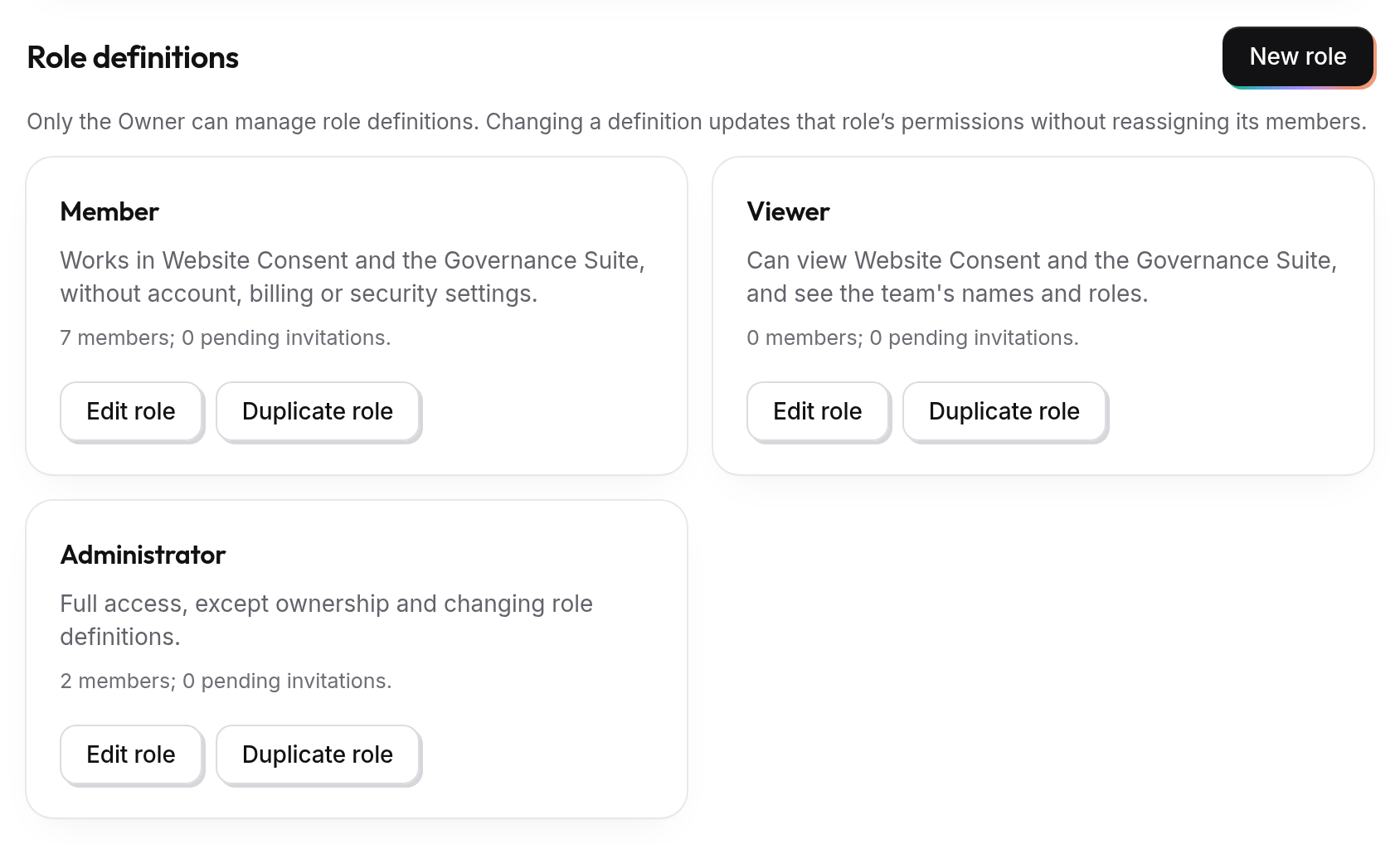
- Administrator: full access, except ownership and changing what roles can do.
- Member: works in Website Consent and the Governance Suite, without account, billing or security settings.
- Viewer: can see Website Consent and the Governance Suite, and the team's names and roles, but can't change anything.
As a rough guide, make the colleague who runs your settings and billing with you an Administrator. People who handle requests, banners and forms day to day are Members, and managers or auditors who only need to look are Viewers. Only the Owner and Administrators can invite people.
Invite someone
Open Team
Select Settings, then Team.
Send the invitation
Select New invitation. Under Invite a team member, enter their Email 1 and choose a Role 2. Select Create invitation 3.
We email them a link. They sign in, or create their ComplyZero account with that email address, and accept. Your organisation then appears in their account. If they already belong to another organisation on ComplyZero, they switch between the two from the organisation name at the top of the sidebar.
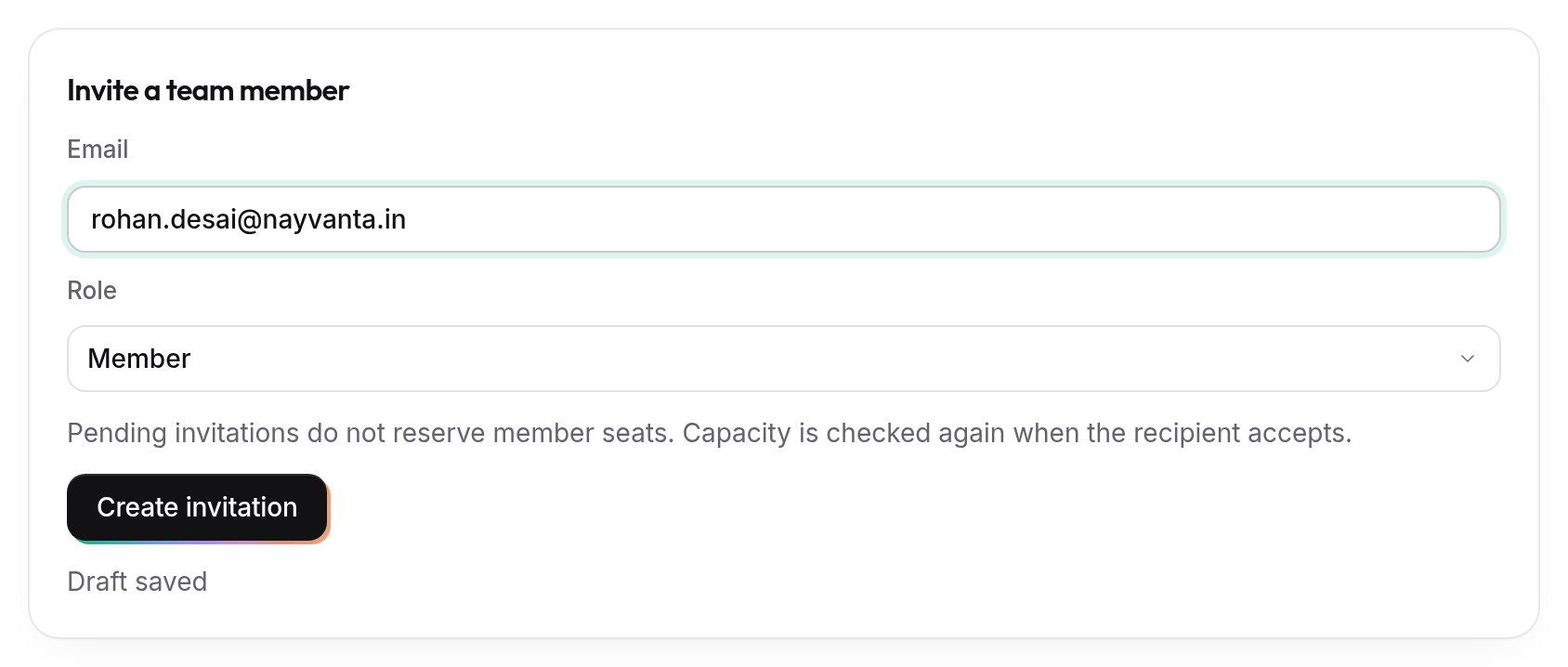
An invitation doesn't use up a seat on your plan until it's accepted. If your plan has no room left by then, the person is told when they try to accept.
Follow it up
Pending invitations are listed under Invitations, each with the date it expires. If the email didn't go out, select Send the email again. To withdraw an invitation, select Review cancellation. If one expires before it's accepted, simply invite the person again.
Change a role or remove someone
Under Members, choose a new role for the person and select Review change, or select Review removal to remove them. Before anything changes, you see exactly what access they gain and lose. Tick I confirm this exact reviewed change and select Confirm change.
Someone you remove loses access straight away. What they did stays on record, under their name.
Make your own role
Under Role definitions, select New role 1, or Duplicate role on one that's close to what you need. Give it a name and a description, choose its access, then review and save it. Each role says in plain words what it's for. Only the Owner can make or change roles.
Access is grouped by area, such as Website Consent, privacy notices, Requests and Breach Desk, so you can, for example, let someone prepare request responses without letting them approve requests. Some access is marked as high risk, such as viewing or exporting raw personal data, approving deletions, publishing banners and notices, or managing billing. Give it only to the people who need it.
Changing a role changes what everyone with that role can do, from then on.