DocsConsent Hub
See a person's choices
Look up anyone who has made a choice with you, by email address, phone number or a reference such as a member ID, to see what they chose, when and where. People can see and change their own choices in your Preference Centre.
Read the video as text
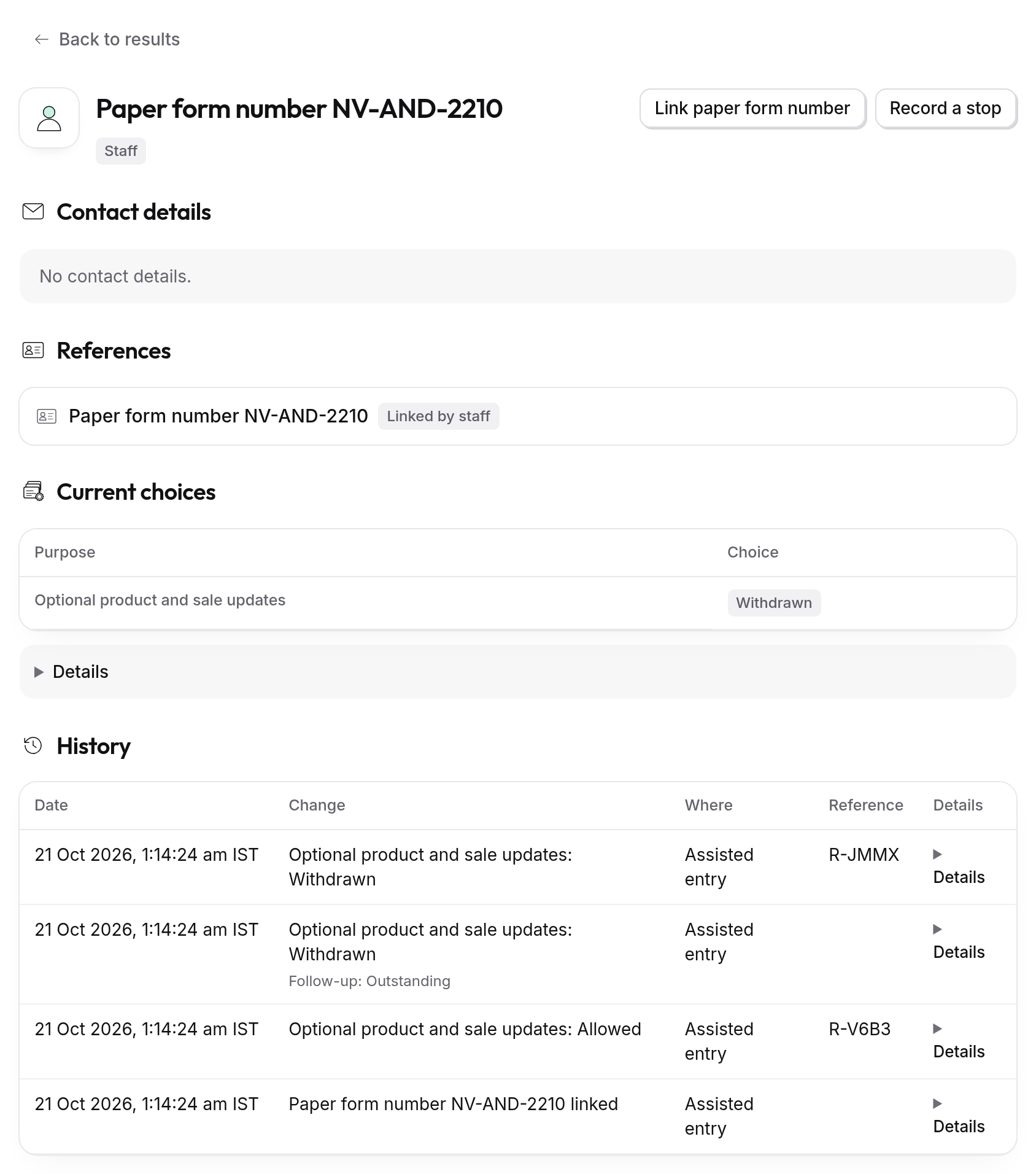
To see what someone agreed to, look them up in People. It has everyone who made a choice on your forms, QR codes or preference centre. Choose the kind of reference you have, such as an email address, a member ID, or here, a paper form number. Enter it in full and select Search. Only exact matches show. Open their record. Current choices shows each purpose and what this person chose. Here, they've withdrawn product and sale updates. History lists every choice and change in order, with where it was made. If someone asks you in person to stop contacting them, select Record a stop, so nobody on your team messages them by mistake. People can also see and change their own choices in your preference centre.
Who you'll find here
People lists everyone who has made a choice with you through your forms, QR codes or Preference Centre, or whose choice your team recorded. Visitors who only answered your website's consent banner aren't here: their choices are in that website's Consent Records.
You'd look someone up when they ask what they agreed to, when they complain about a message, or before you contact them, to check they haven't withdrawn.
Look someone up
Search for the person
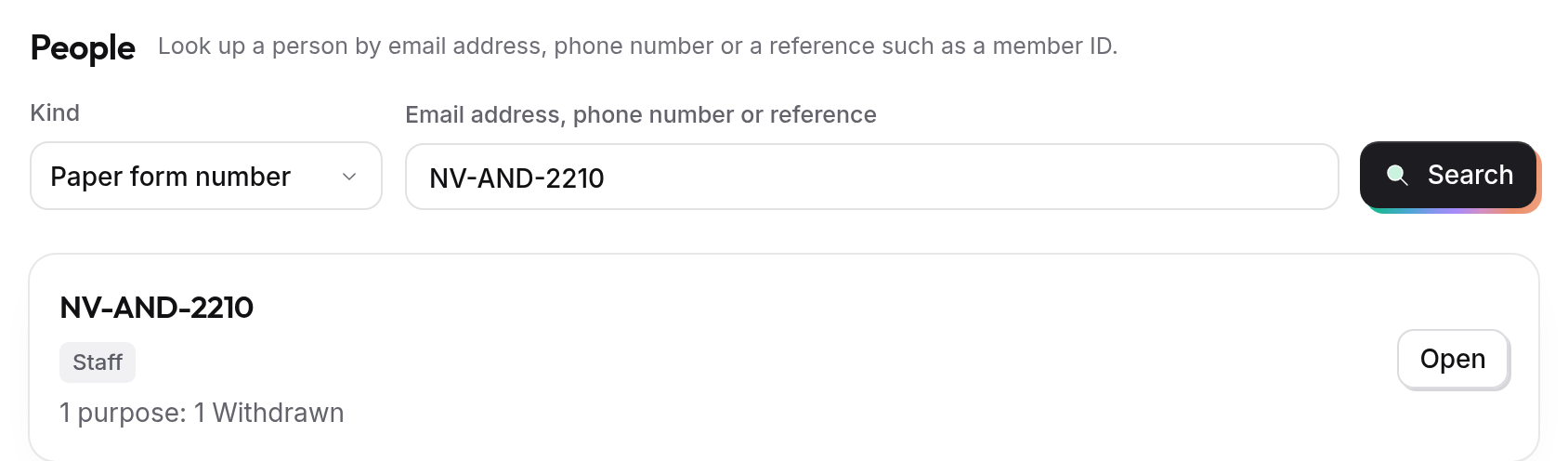
In the sidebar, under Consent Hub, select People. Under Kind 1, choose Email or phone, or the kind of reference you collect, such as Member ID or Paper form number. Enter the full value 2 and select Search. Only exact matches are shown, so a partial email address won't find anyone.
Open their record
Select Open 3 on the result. The record shows:
- Contact details and References, with how each was added: Entered on a form, Linked by staff or Linked by your system.
- Current choices 1: each purpose with what the person chose, and for each way you contact them, such as email or SMS.
- History 2: every choice and change in order, with Details for where and how it was made.
Link a reference
If you know a person by another reference too, such as a member ID, open their record and select the Link button for that kind of reference, such as Link paper form number. Enter the value, add a reason if you like, and select Link. Linking changes no choice, confirms no phone number and gives the person no new way to sign in.
Record a stop
When someone asks you in person or on the phone to stop contacting them, record it straight away, so nobody on your team messages them by mistake. Open their record and select Record a stop. Choose the purpose, or All purposes, and the ways to stop, such as email or SMS, then select Record stop. The record confirms what was stopped, for which purpose and contact. A person with no contact details on record has nothing to stop.
People can also stop messages themselves: your Trust Centre has a Stop messages from us page where they enter their email address or phone number and choose what to stop.
Your Preference Centre
Your Preference Centre is the page where people see and change their choices with you. In the sidebar, under Consent Hub, select Preference Centre.
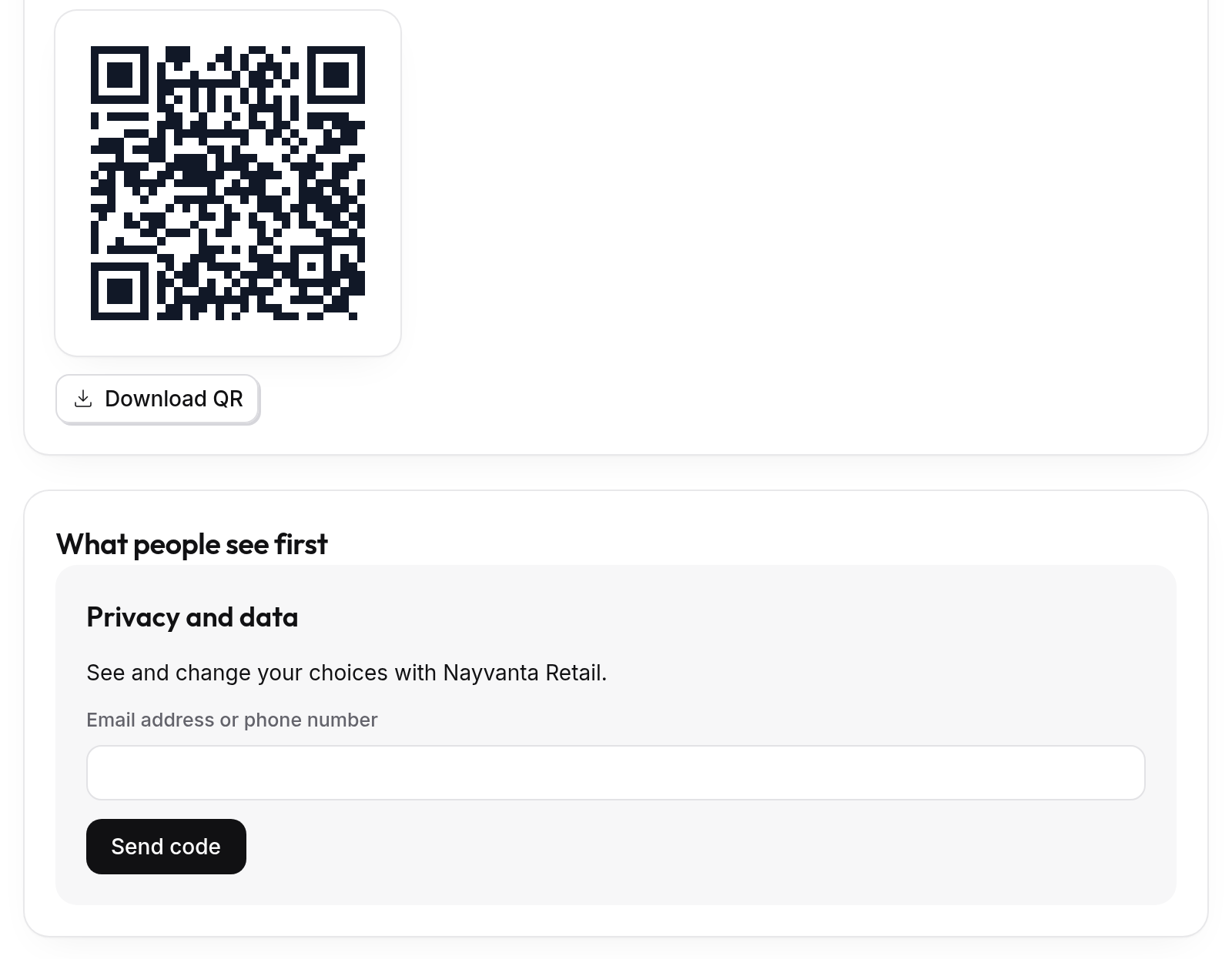
Under Your Preference Centre link, select Copy link to share it in emails or on your website, or Download QR 1 to print it. What people see first shows the page itself. People enter their email address and we send them a code, so only they can open their choices. Codes by text message aren't available yet, so someone who gave you only a phone number can't open their choices this way, but they can still stop messages from your Trust Centre.
In the Preference Centre, people see each purpose they've made a choice about, and can change it. Each change is recorded with its time, and shows in their History here.