DocsTrust Centre
Publish your Trust Centre
Your Trust Centre is your public privacy page on privacy.complyzero.com. It shows your privacy notice, lets people send you requests and links to their choices. You write the notice; ComplyZero keeps the rest up to date.
Read the video as text
Your Trust Centre is your public privacy page. It shows your privacy notice, and it's where people send you requests and manage their choices. Select Trust Centre. The first time, select Write a notice. After that, open your notice. Say who it's for and where people see it, and tick each language people can read it in. Then select Fill in from Processing. It fills in your company details, the data you use and why, who you share it with, and how long you keep it. It only fills empty sections. The rest is yours: people's rights, how to withdraw consent, and how to complain. Short, plain sentences work best. Each extra language is written on Translations, with the original beside it. Someone who reads both checks every field before you publish. On Publish, select See what will go live to read it exactly as people will, then publish that version. Every published version stays in History. People keep seeing the live one while you work on the next.
Why you need one
When you ask people for their personal data, the DPDP Act expects you to tell them, in plain words, what you collect and why, how to withdraw their consent and use their rights, and how to complain. That's your privacy notice. Your Trust Centre gives it a permanent public home, and puts the request form and people's choices next to it.
What people see
Your Trust Centre lives at its own address, such as privacy.complyzero.com/your-company. It has your published privacy notice 1, and lets people ask about their data, raise a complaint, withdraw a consent, stop messages from you and see their choices. Your privacy contact sits beside them. The request links appear once you've published your request form in your request settings.
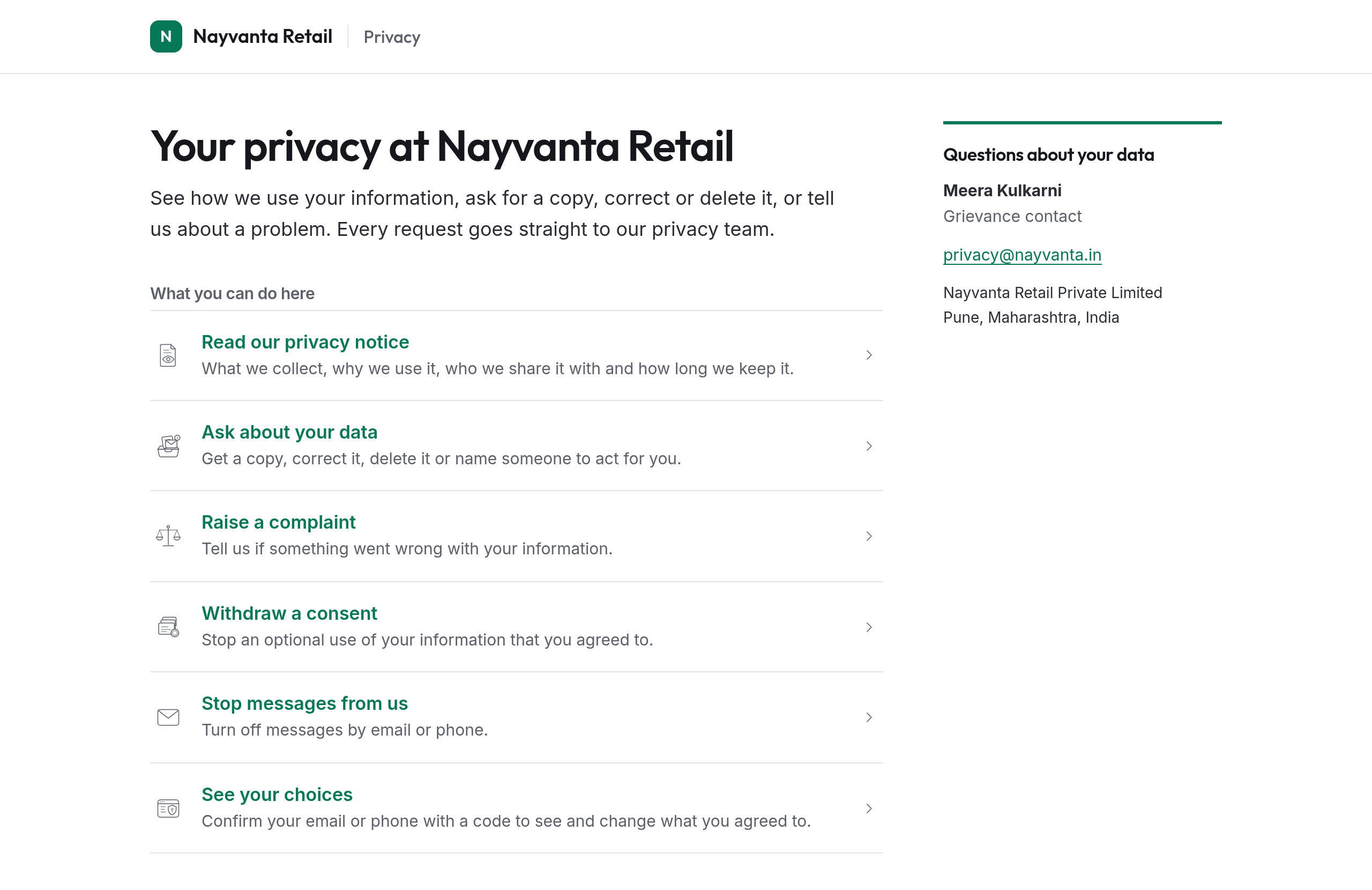
Requests sent from it arrive in Requests, with the person's email address already confirmed.
Your Trust Centre notice and your website notices
The notice on your Trust Centre covers your whole organisation. Each website also has a notice of its own, under Website Consent, then Privacy Notice, which its consent banner links to. You write both the same way. This guide covers the Trust Centre notice.
Before you start
Two things make the notice much quicker to write, because it can fill itself in from them:
- Your privacy profile: your public business name, privacy contact and grievance officer. Select Settings, then General, and fill in Privacy profile.
- Your Processing: what you use personal data for, with your published purposes. See Set up your purposes.
Writing the notice needs permission to manage privacy notices, and publishing it needs permission to publish them. The built-in Member and Administrator roles have both.
Write and publish your notice
Open your notice
In the sidebar, under Governance, select Trust Centre. The first time, select Write a notice. After that, select Open 1 beside your notice.
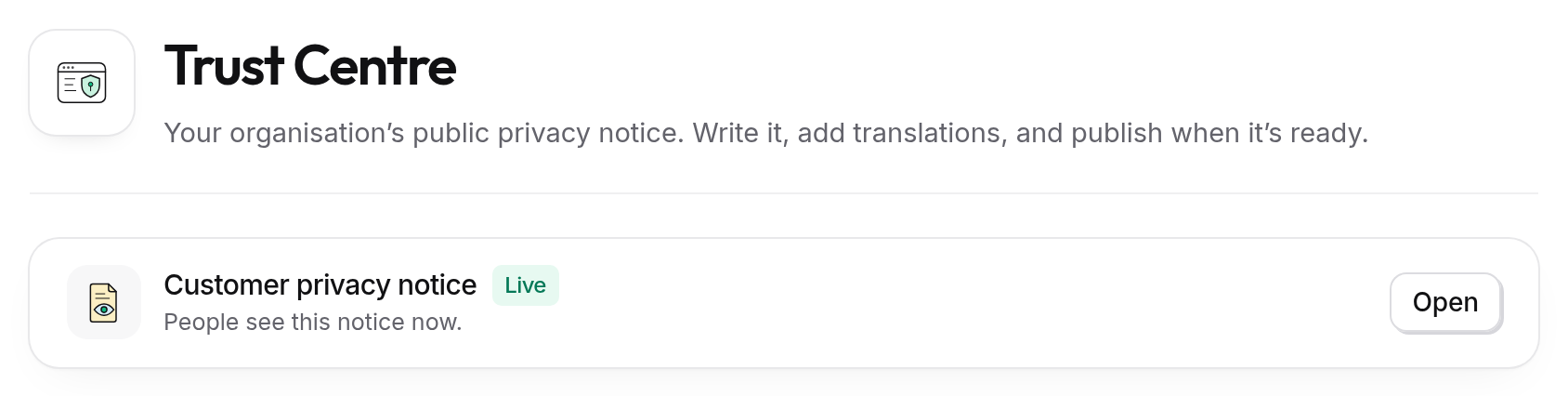
Say who it's for and choose the languages
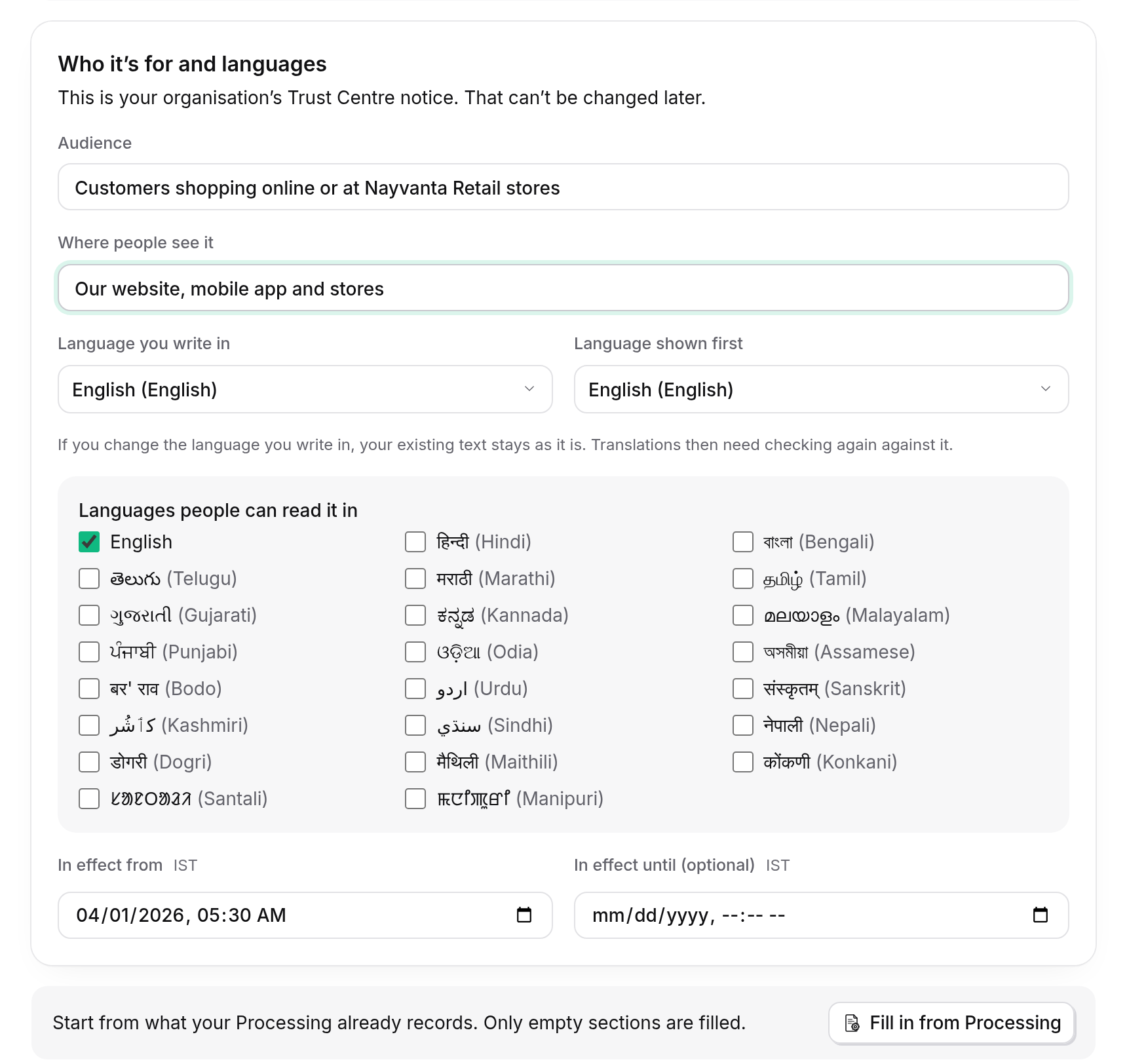
On the Write tab, fill in Who it's for and languages:
- Audience: who the notice is for, such as "Customers shopping online or at our stores".
- Where people see it: such as "Our website, mobile app and stores".
- Language you write in and Language shown first.
- Languages people can read it in 1: tick every language you'll translate the notice into. Each one needs a checked translation before you can publish.
- In effect from: the date the notice applies from.
Fill in what ComplyZero already knows
Below the languages, select Fill in from Processing 2. It fills these sections from your privacy profile and your published purposes:
- Data Fiduciary identity and privacy contact: who you are and how to reach you, including your grievance officer;
- Personal data and sources: the data each purpose uses;
- Purposes, actual service or use, and processing grounds: what you use it for, and on what grounds;
- Recipients and transfers: who you share it with;
- Retention periods or conditions: how long you keep it.
It only fills sections that are still empty, so it never replaces anything you've written. Read what it wrote and make it sound like you.
Write the rest, and save
These sections are yours to write:
- Introduction: a sentence or two on who the notice is for and what it covers.
- Rights and request method: what people can ask you for, and how. Point them to the request form on your Trust Centre.
- Withdrawal method and consequences: how to withdraw consent, and what changes if they do. For example, they'll stop getting offers, but their orders still arrive.
- Grievance process and Board-complaint information: how to complain to you, how quickly you reply, and that they can complain to the Data Protection Board of India if they're not satisfied.
- Children and representatives: how you handle data about children, and how someone can act for another person.
Short, plain sentences work best. People should be able to read the whole notice in a few minutes. Select Save draft when you're done, or at any point to keep your work.
Add and check each translation
On the Translations tab, choose a language and write each section in it, with the original shown beside it. Before you publish, someone who reads both languages compares every field with the original, ticks I compared every translated field with the original shown beside it and selects Mark as checked.
Publishing waits until every language is checked. If you change the original later, its translations need checking again.
Publish
On the Publish tab, select See what will go live to read the notice exactly as people will, then Publish version with its number. Your Trust Centre shows it straight away.
Change it later
Open the notice and make your changes on the Write tab, then select Save as a new draft. People keep seeing the published version while you work. Check the translations again, then publish the new version. Every version you've published stays in the notice's history.
Take the notice down
If you need to withdraw the notice, open it and select Take the notice down. Give a reason, and select See what this affects to see the banners that link to it. Once it's down, the public page stops showing it until you publish again. Past versions and consent records are kept, and copies cached by browsers can take up to five minutes to clear.