DocsWebsite Consent
Add your website
Setup has five short steps, from your company's name to one line of code on your website. You can stop after any step and carry on later from where you left off.
Read the video as text
Adding a website takes a minute. On Overview, under Website health, select Manage websites. Then select Add Website. Give it a name you'll recognise, and enter its address, starting with https. Below is the plan it goes on. What's included lists its limits, like how many consent choices it covers each month. Then select Add website. Setup carries on from there: a scan of your website, your banner, and one line of code on your site. You can stop after any step and pick up later.
Before you start
- You need to be able to change your website's code, or know who can. The last step adds one line to it.
- The Free plan covers one website. For more, choose a plan with room for them in Billing.
Open setup
If you're new to ComplyZero, setup opens the first time you sign in. Otherwise, select Add Website in the sidebar, or Add Website Consent if you haven't set it up before.
Adding another website? On the Overview, under Website health, select Manage websites, then Add Website. You fill in the same form as in step 2, and setup carries on from step 3.
Setup, step by step
Tell us about your company
You only see this the first time. Choose Cookie consent for your website, enter your Company name and select Continue. Then add a phone number if you like, read the data processing agreement, tick the box to accept it and select Accept agreement, then Continue.
Add your website
Enter a Website name 1 and the Website address 2, for example
https://www.example.com. Below them is the plan the website goes on 3, and What's included lists its limits. If more than one plan has room for a website, choose one under Plan for this website. Then select Add website 4.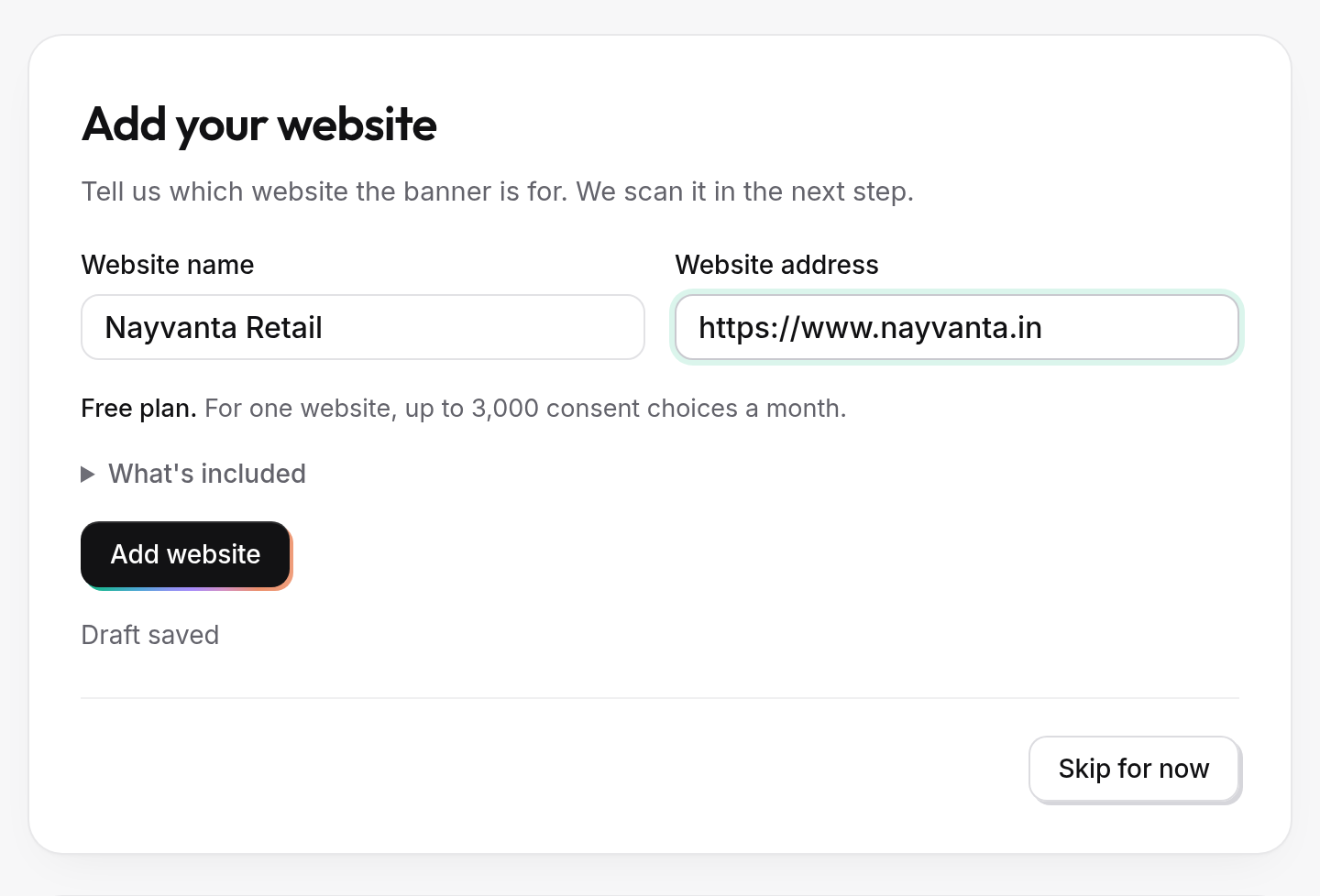
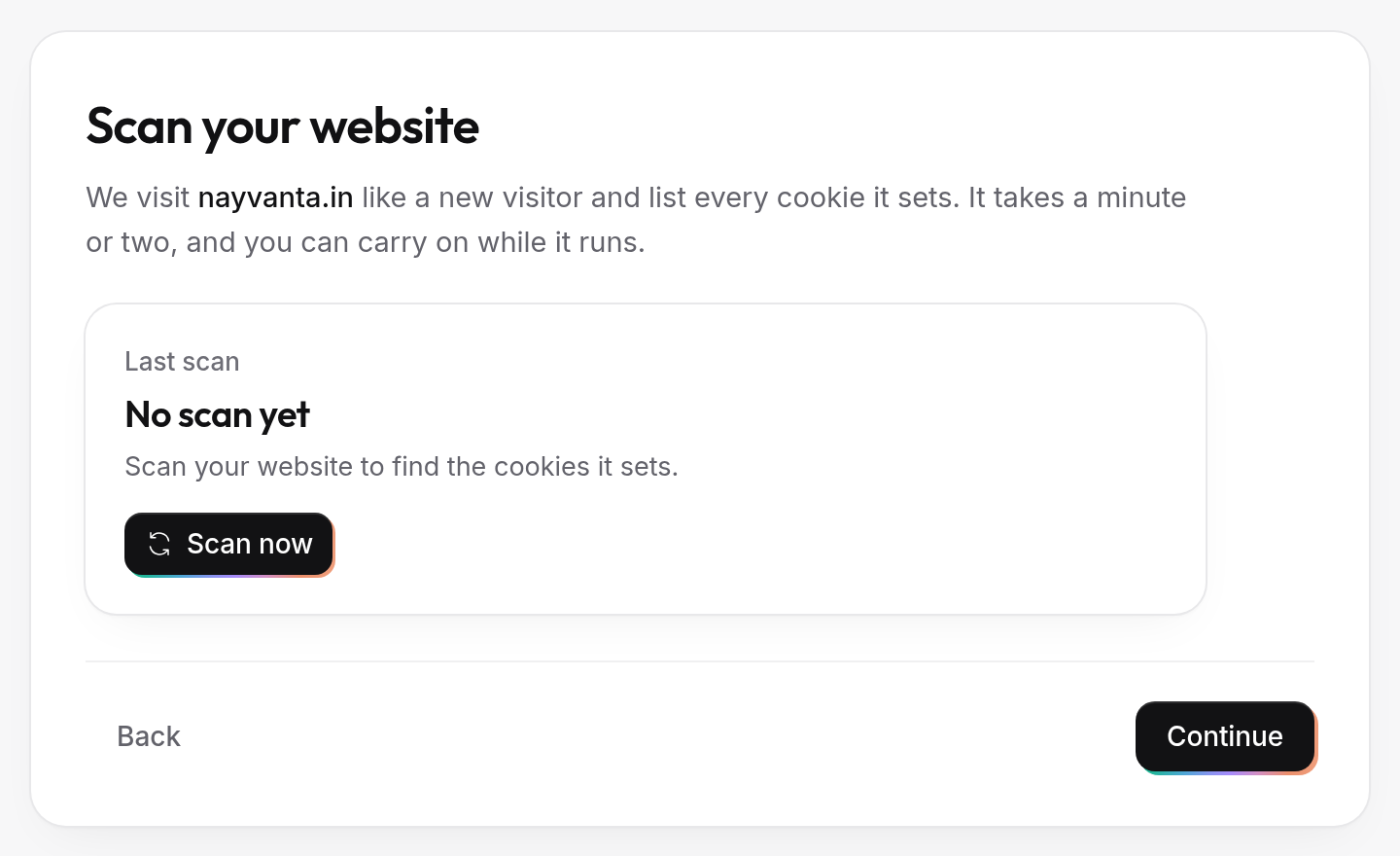
Scan your website
Select Scan now 1. We visit your website like a new visitor and list every cookie it sets. It takes a minute or two, and you can select Continue 2 while it runs.
When it finishes, you can sort the cookies into categories straight away with Open your cookie list, or later from Cookies.
Set up your banner
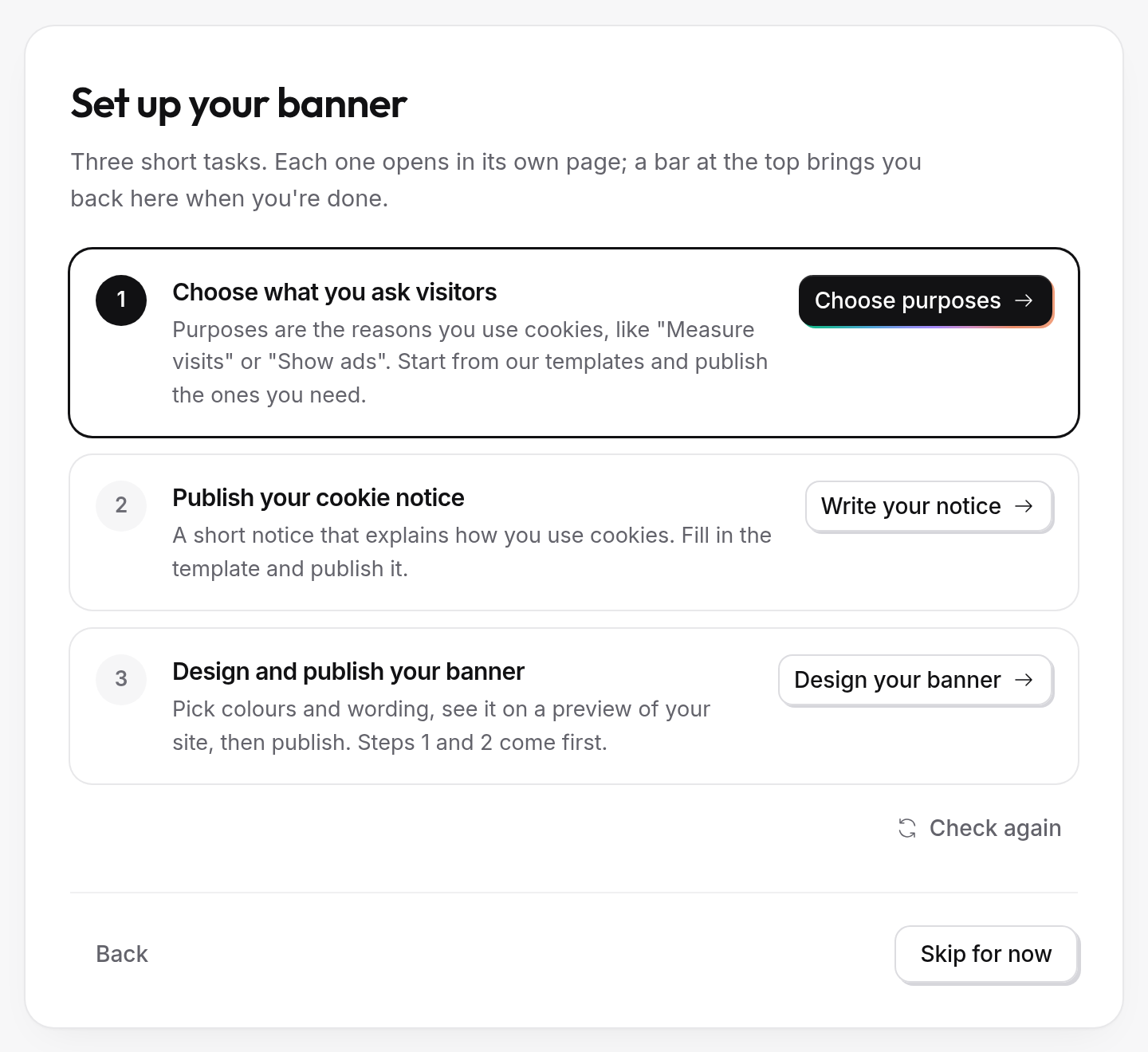
Three short tasks, each on its own page. A bar at the top of each page brings you back here.
- Choose what you ask visitors 1: the reasons you use cookies, such as measuring visits or showing ads. Select Choose purposes, start from our templates and publish the ones you need.
- Publish your cookie notice 2: a short notice about how you use cookies. Select Write your notice, fill in the template and publish it.
- Design and publish your banner 3: select Design your banner, pick colours and wording, see it on a preview, then publish.
A finished task shows Done. Once your banner is published, the Skip for now button 4 becomes Continue. Select it to go on.
Add the banner to your website
Select Copy code and paste it as the first item inside the
<head>tag of every page of your website. Where to paste it has the steps for WordPress, Shopify and Wix.Publish the change on your website, then select Check my website. We open your website and look for the code. When you see Found it. Your banner code is on your website., select Finish setup.
If a step gets stuck
We couldn't find the code on your page yet. Make sure you saved or published the change on your website, then check again. Some websites cache pages for a few minutes.
We couldn't open your page to check. Your website may be blocking our check. Open your website in a private window: if the banner shows, it works.
Your banner isn't set up yet, so there's no code to add. Go back one step and publish your banner.
You've used the websites your plan includes. Choose a plan with room for another website in Billing.
Still stuck? On the last step, select We'll help you install it and we'll walk you through it.