DocsRequests
Handle a request
Each request tells you what to do next. This guide takes one request from start to finish, then covers asking the person a question, people acting for someone else, and rejecting or reopening a request.
Read the video as text
Each request tells you what to do next. Open it from Requests. The line at the top says what happens next. Below it is who's asking and what they want, in their own words. Select Review, then Review request. Check who's asking, that it's about their own data, and what they want. If it makes sense, tick the box and approve it. The request moves to In progress. Now the privacy work. Review required systems and actions lists every system this request needs work in. Here, none is set up for this kind of request yet. So add the missing system yourself. This purchase was made in a store, so it's the store sales system. Review again. Each system is listed with the action it needs. For an access request, that's exporting the person's data. When the list is right, tick the box and accept the reviewed work. Do the work in that system, then come back and record what happened: the actual outcome, and a note if it helps. Then confirm. Every action now has a result. Write the response the person will read: what you hold about them, what you use it for, and who you've shared it with. Then save it. Inspect saved content shows exactly what they'll get. To finish, add a note for the requester if you like, and choose whether to email them. Then review the complete outcome. Tick to confirm, and complete the request. The finished response can't be changed afterwards.
Before you start
You need a role that can manage, decide and release requests. The built-in Member and Administrator roles can do all three. See who on your team can do what.
Have a list of the places your business keeps people's data: your customer database or CRM, your email marketing tool, your order and billing systems, shared spreadsheets. Most of the work on a request is checking each of them.
From arrival to response
Open the request and read the next step
Open the request from Requests. The line at the top 1 always says what happens next and who it's waiting on.
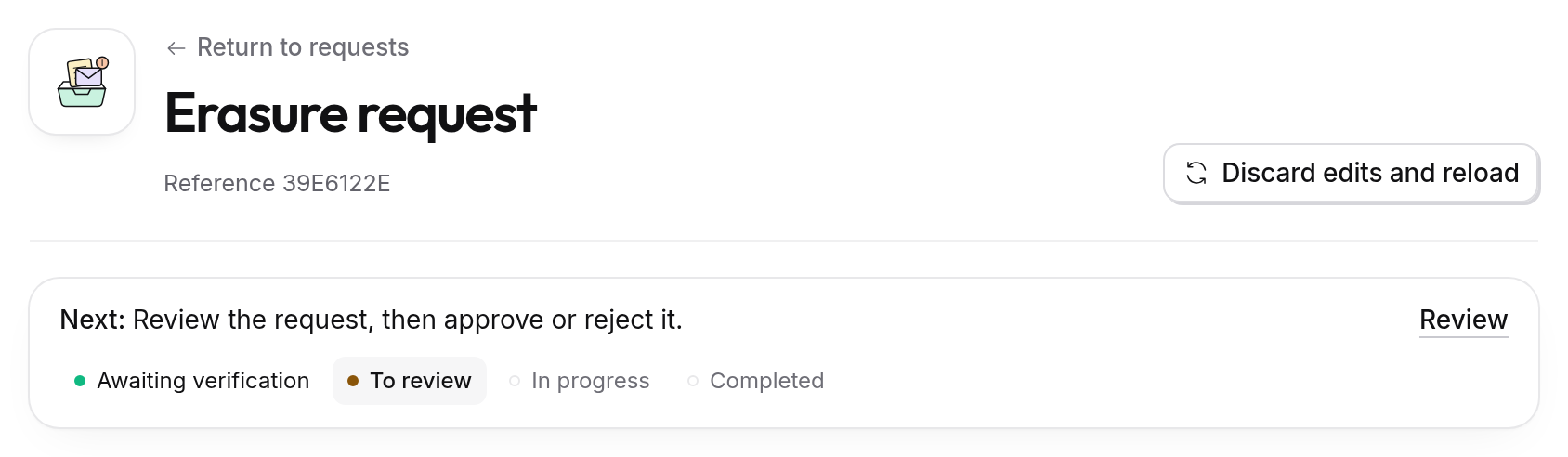
Below it you'll find who's asking and what they want, in their own words. The panel beside it shows the request's status, its handler, when it came in, its target date and its language.
Make sure the person is verified
A request from your Trust Centre arrives already verified: the person confirmed their email address with a code.
For a request your team recorded, you send the code. Under Requester verification, select Send a verification code. Check the email address, tick Send requester verification to this recorded address and select Send verification email. The person gets a code and a secure link, and once they enter the code the request shows To review. If they don't, it waits, and you can send a new code.
A request recorded without an email address can't be verified, so it can't go any further. Ask the person for one and record the request again.
Review and approve it
Select Review 2 on the next-step line, or Review request under Approve for handling.
Check that the request makes sense: who's asking, whether it's about their own data, and what they want. Tick I have reviewed this request and its current authority and select Approve request. The request moves to In progress.
If it shouldn't go ahead, reject it instead, with a reason the person will see.
Review which systems need work
Select Open the privacy work on the next-step line. It takes you to Required privacy work, where you decide which systems this request needs work in.
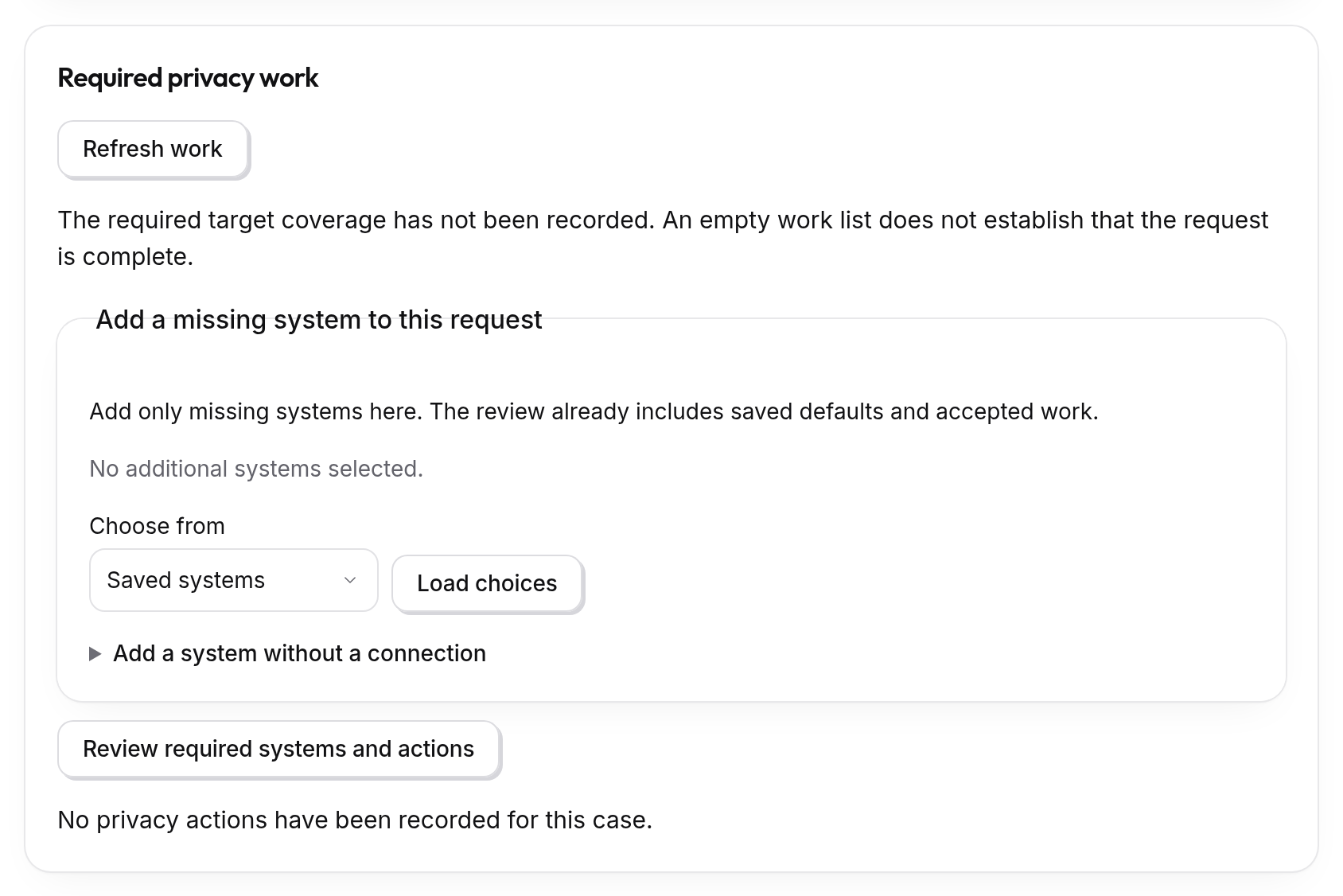
ComplyZero already knows the systems in your request settings that hold data for this kind of person and this type of request, and its own records, such as form answers and consent records. Check that nothing is missing:
- A system you use isn't covered? Add it under Add a missing system to this request 1. Pick from Saved systems, the sources in your Data Register, or from Connected accounts, and select Load choices. For a system ComplyZero doesn't know about, such as a spreadsheet or a supplier's portal, open Add a system without a connection and give it a name. You'll check it by hand.
Then select Review required systems and actions 2. You see every system, and the action each needs: for an access request, exporting the person's data; for an erasure, deleting it.
- A system listed doesn't apply? Write a short reason under Not relevant to this request? and it's left out, with your reason on record.
After any change, select Review required systems and actions again. When the list is right, tick I have reviewed the relevant systems, scope and required work for this request and select Accept reviewed work.
Do the work in each system
Each action is now listed with its state: Pending, In progress, Action needed, Completed or Failed.
- Connected systems that can do the action themselves run it for you. Check each result when it shows. An erasure in Zoho CRM, for example, removes the record from active Zoho CRM but doesn't empty its Recycle Bin.
- ComplyZero's own records have buttons on the action to check and carry out the work. Consent records and other evidence follow their own keeping rules, so some may be kept, with the reason recorded.
- Everything else you do yourself, in that system. Then come back, select Review customer confirmation on the action, choose the Actual outcome, read the statement you're confirming, add a note if it helps, and select Confirm actual result.
The outcomes you can record:
- Exported, Corrected or Deleted: you did what was asked in that system.
- Identifying details removed: the records stay, but they can no longer be tied back to the person.
- No matching data found: you searched the whole system and found nothing about them.
- Restricted: you've stopped using the data until a date, or while a hold or other requirement applies.
- Retained for a recorded reason: you have to keep the data, for example to meet a legal duty. You write down which requirement applies.
- No action required: the action doesn't apply to this system.
The request can't be completed until every action has a result. If you recorded one wrongly, select Review result correction on that action to reopen it.
Write your response
Under Response draft, write the Response text: the answer the person will read. Keep it plain and specific to what they asked:
- Access: what data you hold about them, what you use it for and who you've shared it with.
- Correction: what you changed, and where.
- Erasure: what you deleted, and anything you had to keep and why.
- Withdrawal help: what you've stopped.
- Grievance: what you looked into, what you found and what you've done about it.
You can't attach files of your own, so put everything the person needs in the text. For an access request, you can tick Append current ComplyZero data from this request's required sources to add the records ComplyZero holds about them after your text.
You can also add a scope and notes for the person, and choose Summary only or Full export under Content designation. Select Save response, then Inspect saved content to read exactly what the person will get.
Complete the request
Under Complete request, add Outcome notes for the requester if you like, and choose a Notification: email the person that it's done, or don't send an email. Either way, they can read the outcome on their request page.
Select Review complete outcome, check the outcome, response and recipient, tick I reviewed this exact outcome, saved response, recipient and notification choice and select Complete request. The finished response can't be changed afterwards.
Ask the person a question
If you need one more fact to carry on, use Ask for information. Choose a ready-made question, such as which account or period the request is about (Request scope), an ID that helps you find their records (Record identifier) or what exactly should be corrected (Correction details), or select Write a short question. Choose how they reply, for example Short text or Yes or no, and select Ask for information.
We email them a link to answer, and the request shows Waiting for reply until they do. You can ask one question at a time. If the link expires, the question stays open: select Resend answer link to send a new one, or Cancel question to close it. Asking doesn't pause the target date.
When someone acts for another person
A request can be made on someone else's behalf, for example by a parent, a lawyer or a family member. The request shows this under who's asking, with the relationship they claimed.
Each person confirms their own email address. Once the requester is verified, send the person being represented their own code under Represented-person verification. Our email tells them a request was made for them.
Then link each person to their record in People. Under Requester subject, select Review requester subject, tick I confirm this requester subject link and select Link requester subject. Do the same under Represented-person subject.
Finally, someone who can decide requests reviews Authority to act: the relationship and what supports it. Select Establish authority if it holds up. Authority not established keeps the request open for you to look into further; it doesn't reject it. A confirmed email address never proves authority on its own.
Nominations
A nomination request names someone who may act for the person if they die or can't act for themselves. Select Review nomination, check the person, the nominee and their relationship, and select Record future nomination. It gives the nominee no right to act for the person today.
Reject a request
If a request can't go ahead, for example because it's a duplicate or isn't about the person's own data, select Review fileless rejection. Write the Reason shown to the requester, choose whether to email them, tick to confirm and select Reject request.
Rejecting closes any unanswered question, and doesn't mark unfinished work as done.
Reopen a request
If a completed request needs more work, for example the person says something was missed, select Reopen request. Write the Reason for reopening, tick Reopen this request for further handling and select Reopen completed request. The request goes back to In progress. When you finish it again, you close it with a new response, and the first one stays on record.
Keep notes and history
Under Internal note, write anything your team should know, such as who you spoke to. Notes are seen only by people who handle requests, never by the person. History lists everything that has happened on the request, and who did it.