DocsConsent Hub
Set up your purposes
A purpose says what you use people's data for, such as sending offers by email or measuring visits to your website. Your forms, your Preference Centre and your website banner all ask people about purposes, so you write each one once and use it everywhere.
Read the video as text
A purpose says what you use people's data for. Your forms, your preference centre and your banner all ask about purposes, so you write each one once. Under Consent, select Purposes. Each row shows its kind, its scope, how long consent lasts, and what uses it. Person purposes are the ones your forms ask about. Select New purpose. Start blank, or from a template. Give it a name people will understand, then choose Person, and the scope. Say exactly what you do. One purpose for one use. List only the data it needs, and whose data it is. Say how long you keep it, and who receives it. These details also fill in your privacy notice later. Say what happens if someone withdraws, and choose the legal ground. Most purposes you ask people about use Consent. Choose how long consent lasts before you ask again, and how you'll contact people. Select Save draft. Nobody sees a draft yet. Then Review and publish. Check what will go live, and publish version 1. It's ready for your forms and your preference centre. You can change or retire it later without losing any records.
Two kinds of purpose
- Person purposes are for your consent forms and the Preference Centre: the things you ask a customer, a patient or a student to agree to, such as sending them offers by email.
- Tracking purposes are for your website banner: why your website uses cookies, such as measuring visits or showing ads.
Write purposes people understand
The DPDP Act expects consent to be specific, so people must be able to agree to one use of their data without agreeing to another. A few habits help:
- One purpose for one use. "Send offers by email" and "Share your details with delivery partners" are two purposes, not one.
- Say what you actually do, in the words you'd use with a customer at your counter. "Send offers on new courses by email" tells people far more than "Marketing communications".
- List only the data the purpose needs. If offers go by email, the purpose needs an email address, not a date of birth.
Open your purposes
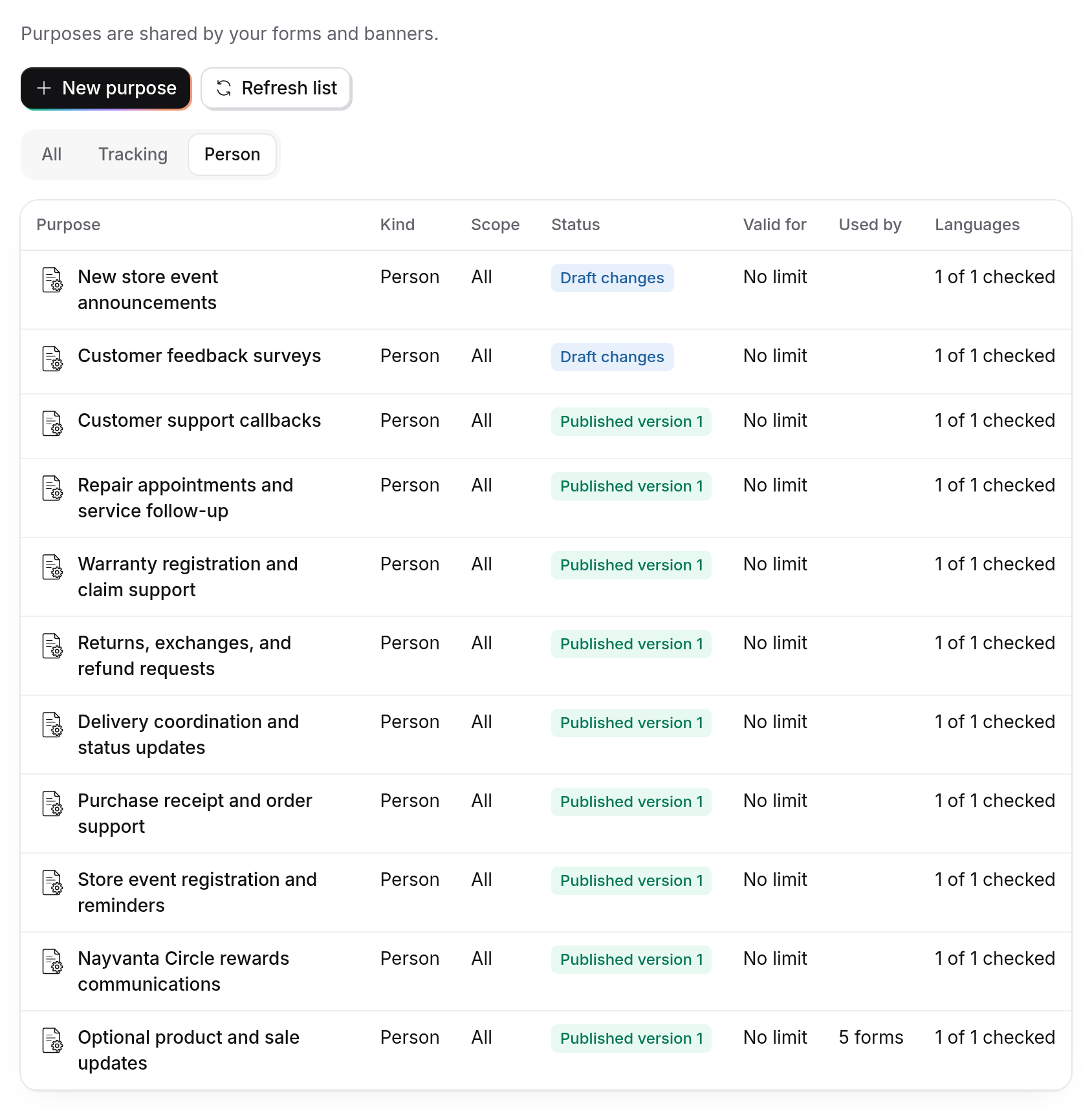
With the Governance Suite, select Purposes under Consent Hub in the sidebar. From a website, open Processing and then Purposes: it's the same list, opened on the Tracking filter.
Each row shows the purpose's Kind, its Scope (all websites and forms, or one website), its Status, how long consent lasts under Valid for, and which forms and banners use it under Used by 1. Use All, Tracking and Person 2 to narrow the list.
Add a purpose
Start a new purpose
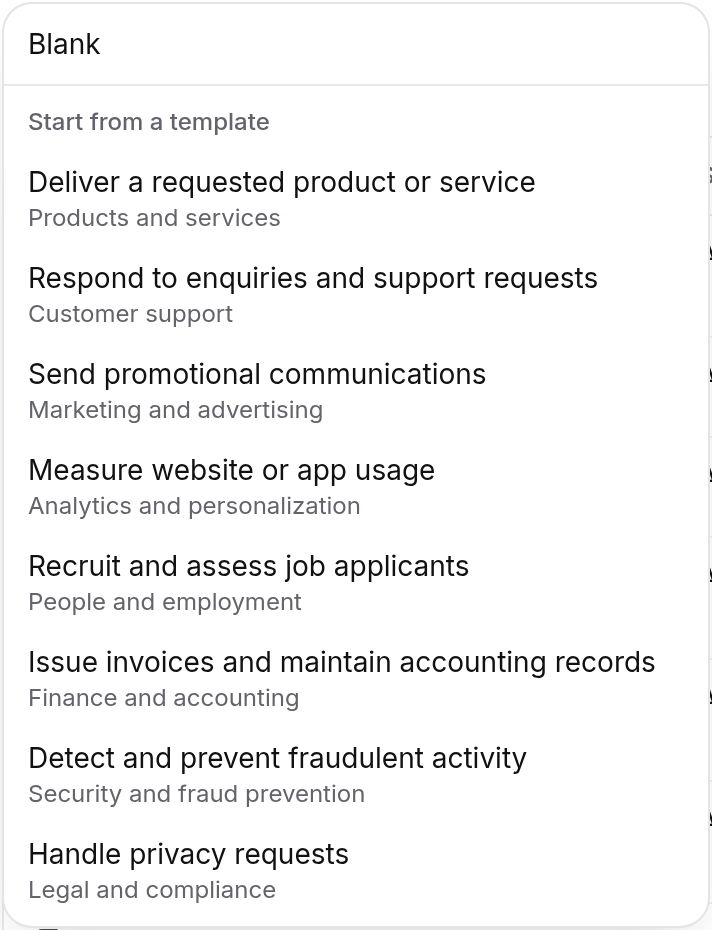
Select New purpose. Choose Blank, or one of the templates under Start from a template 1, such as Send promotional communications or Measure website or app usage. A template fills in the name for you.
Say what it's for
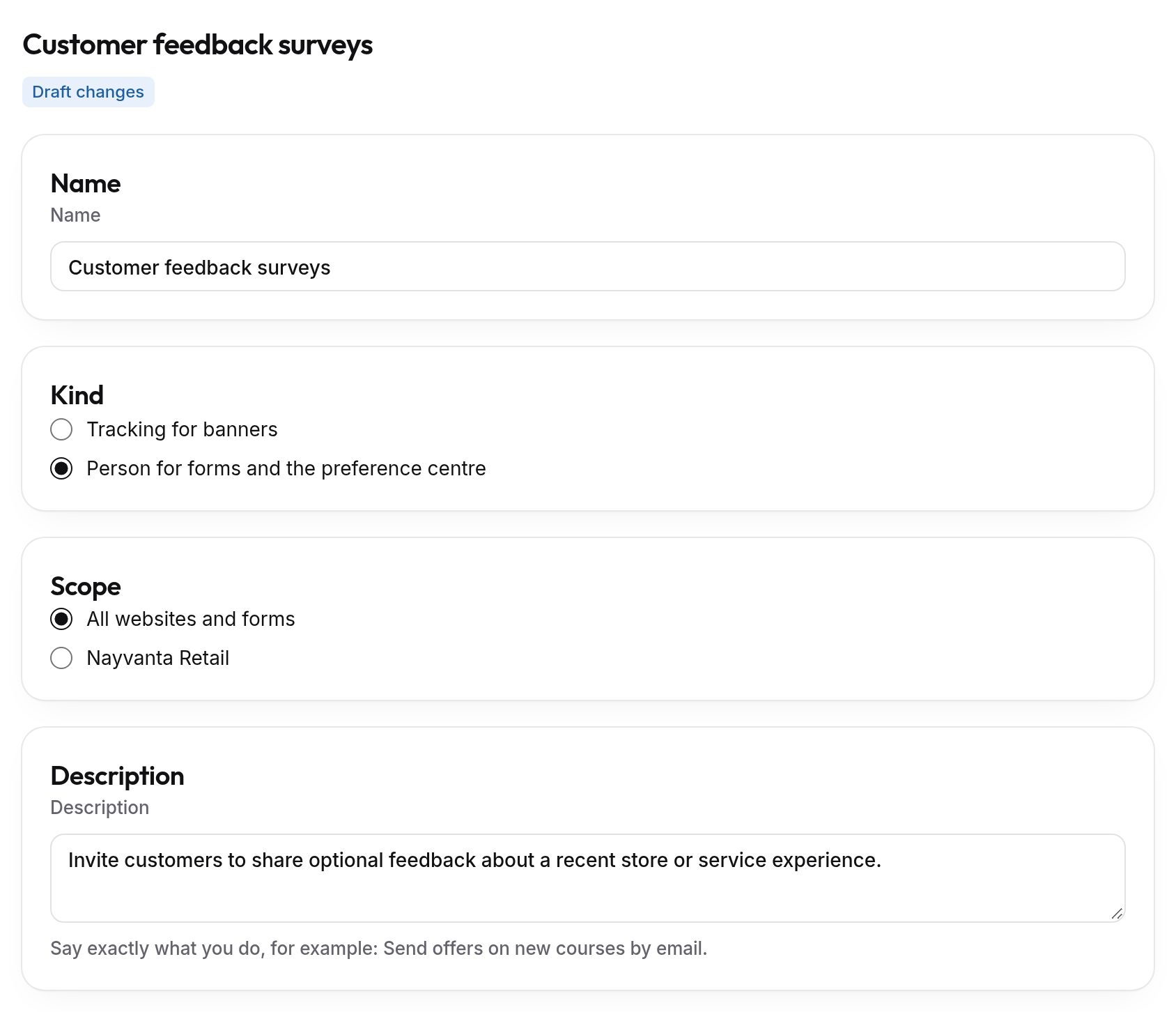
Give the purpose a Name people will understand 1 and choose its Kind 2 and Scope 3. Under Description 4, say exactly what you do, for example "Send offers on new courses by email".
For a person purpose, you also say which Data items you use, whose data it is, how long you keep it, who receives it, and what happens if someone withdraws, such as "You'll stop getting offers; your orders aren't affected". These details also fill in your privacy notice later.
Choose the Legal ground. Most purposes you ask people about use Consent. The others, such as Voluntary sharing or Employment, cover uses the DPDP Act allows without asking, and ComplyZero explains each one beside the choice. If you're unsure which applies, check with your legal adviser.
Consent valid for is how long a person's consent lasts before you need to ask again. Changing it later applies only to consent given from then on. For a tracking purpose, you choose how the banner treats it, such as Off until the visitor agrees, and which Google Consent Mode types it maps to.
Save your draft
Select Save draft. A draft isn't shown to anyone yet, so you can come back to it, and the list marks it Draft changes.
Review and publish
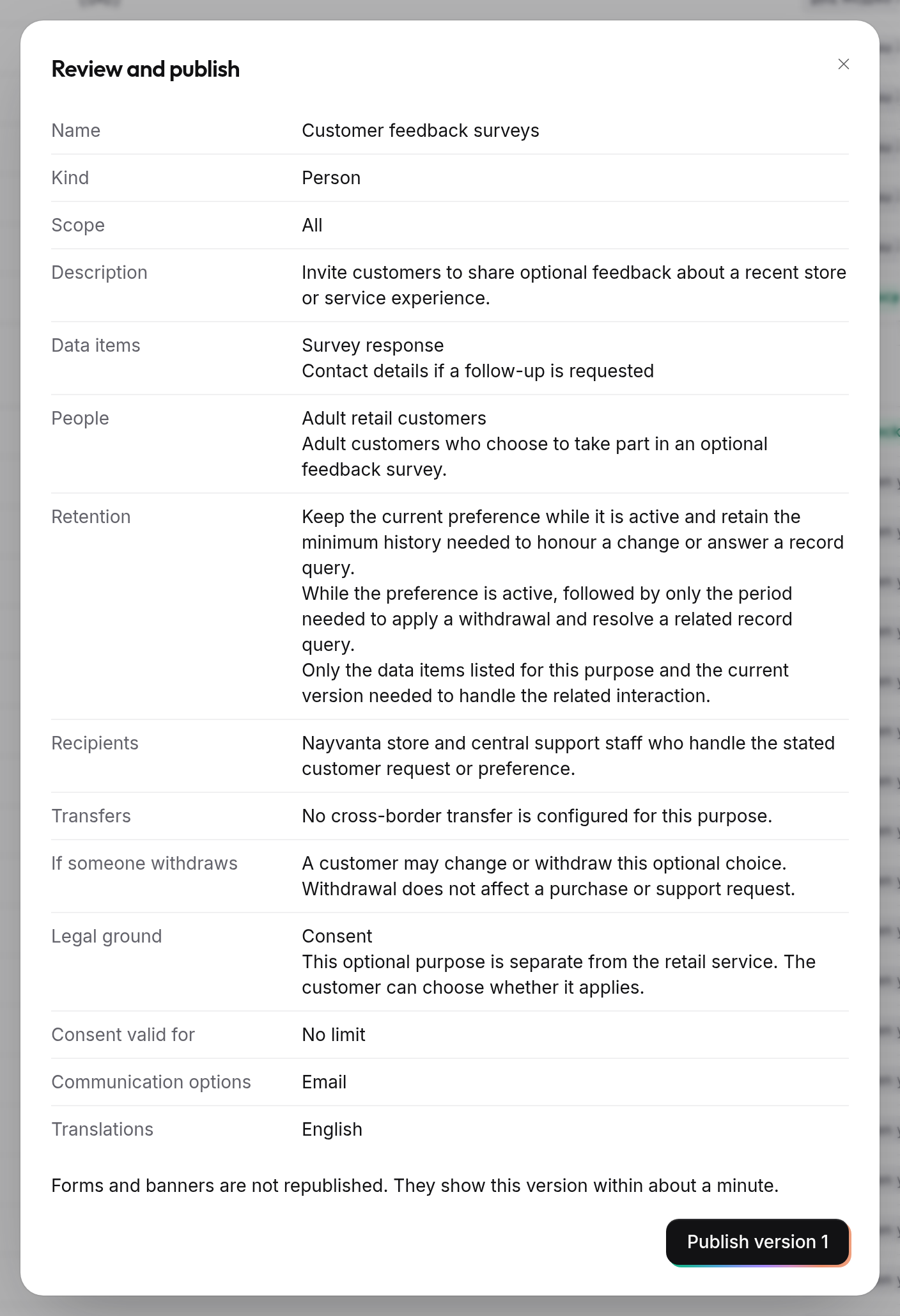
Select Review and publish, check what will be published, then select Publish version 1 1. Your forms and banners show the new purpose within about a minute. You don't need to publish them again.
Change a published purpose
Open the purpose, make your changes, select Save draft, then Review and publish. You're asked: Does existing consent still cover these changes?
- Yes, keep existing consent: people's choices stay as they are.
- No, require new consent: current consent for this purpose stops counting, and people are asked again the next time they open a form, the banner or the Preference Centre. ComplyZero doesn't contact them. Export affected people gives you the list if you want to reach out yourself.
If your forms or banner are in more than one language, check each language's wording under Translations. Publishing waits until every language is checked.
Retire a purpose
Open the purpose and select Retire purpose. Choose Now or On a date. From then on, forms and banners stop asking for it and existing consent for it can't be used. Past choices and their history are kept.