DocsConsent Hub
Collect consent in person
A collection is one place or way you collect consent, like a poster at reception or a form your store staff fill in with customers. Each collection has its own published form and its own setting for where answers go.
Read the video as text
To collect consent in person, on a poster, a paper form or at your counter, open Forms and QR. Each place you collect consent is a collection. Select New collection. Give it a name that says where it is, and choose how people reach the form. This one is a QR poster at the Thane store. Choose the languages people can pick, and large text for a screen read at arm's length. Then choose where answers go. Keep only the consent record, and no answers are stored. Save the collection. Four short steps then take it from setup to people signing up. Next, the form people fill in. Select Create form. Name it, create it, and start its first draft. Add the purposes the form asks about. Then tick how you'll contact people. Then add the fields you need. An email field identifies the person. The offers go to it. Write the help people see at the top, and a label for each field. Save the draft. Review it. Anything missing is listed here. Then publish. People only ever see the published version. Last, share it. Open QR codes and links. Make one QR code for each poster or place, so you can see where sign-ups come from. Choose when it stops accepting sign-ups, up to a year ahead. Select Create QR code. Download it to print. It's sharp at any size, or you can share the link instead.
Before you start
- Publish the person purposes the form will ask about. See Set up your purposes.
- Consent Hub comes with the Governance Suite.
Open Collections
In the sidebar, under Consent Hub, select Collections. Your collections lists each place you collect consent. A collection that's ready to use shows Ready 1. One that still needs work shows how many steps are left, with Finish setup to carry on.
From the list, staff-assisted collections offer Start an entry 2, and poster collections offer QR codes & links.
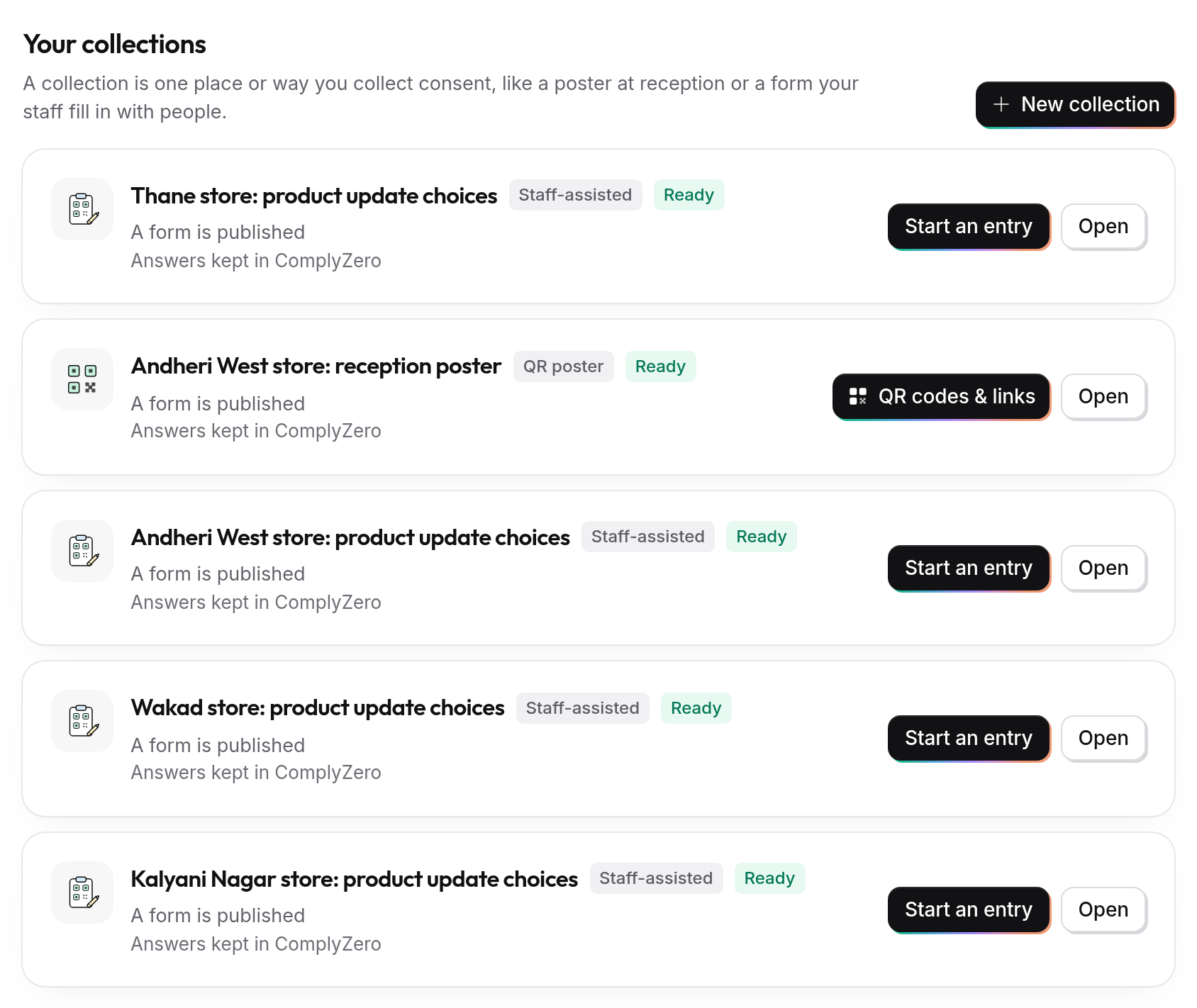
Set up a collection
Select New collection. Four steps take a collection from setup to people signing up 1, and you can save an unfinished setup and come back to it.
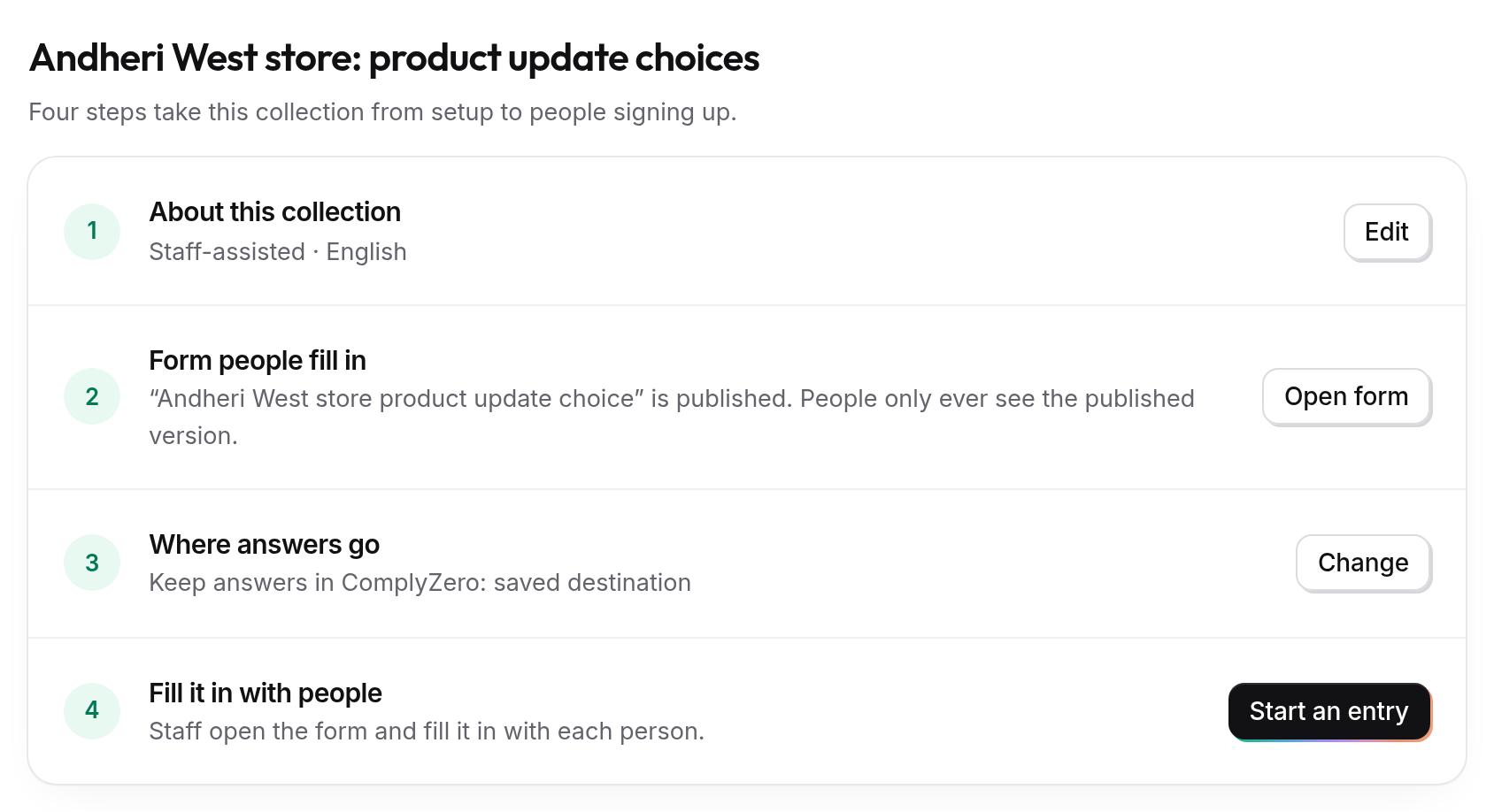
About this collection
Give the collection a name that says where it is, such as "Andheri West store", and choose its type: QR poster, Staff-assisted, Paper form, Kiosk, Counter form and others. Choose the Languages people can choose. Turn on Use large text for a screen people read at arm's length. Select Save collection.
Form people fill in
Select Create form. Give it a Form title, then use Add purpose to choose the person purposes it asks about. Each purpose brings its own wording and the ways people can be contacted, such as email. Add any fields you need, like a name or a membership number.
When the form is ready, save it and select Review complete saved Form. Fix anything the review lists, then select Publish reviewed Form. People only ever see the published version. To change it later, select Edit a new draft version and publish again.
Where answers go
Choose what happens to each person's answers:
- Keep answers in ComplyZero: your team downloads them here. Good if you have no other system.
- Keep only the consent record: no answers are stored. You can email your team a notice for each sign-up.
- Send answers somewhere else: we pass them on by email link or to your own system. Choose the destination before you publish the form.
Start collecting
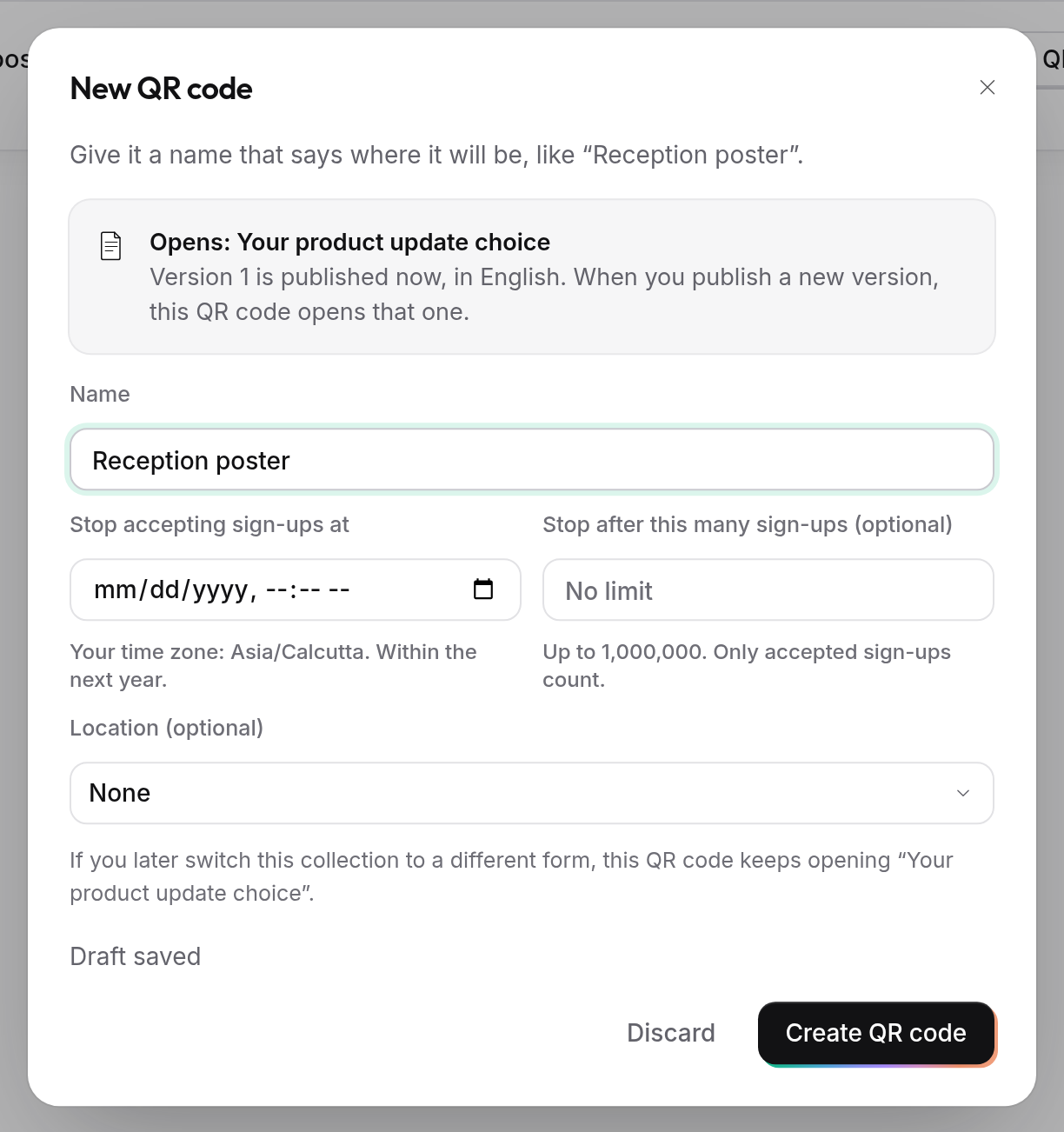
For a QR poster, select QR codes & links, then New QR code. Give it a Name that says where it will be, like "Reception poster" 1. Choose when it stops accepting sign-ups, up to a year ahead, and if you like, a limit on how many people can sign up. Then select Create QR code 2.
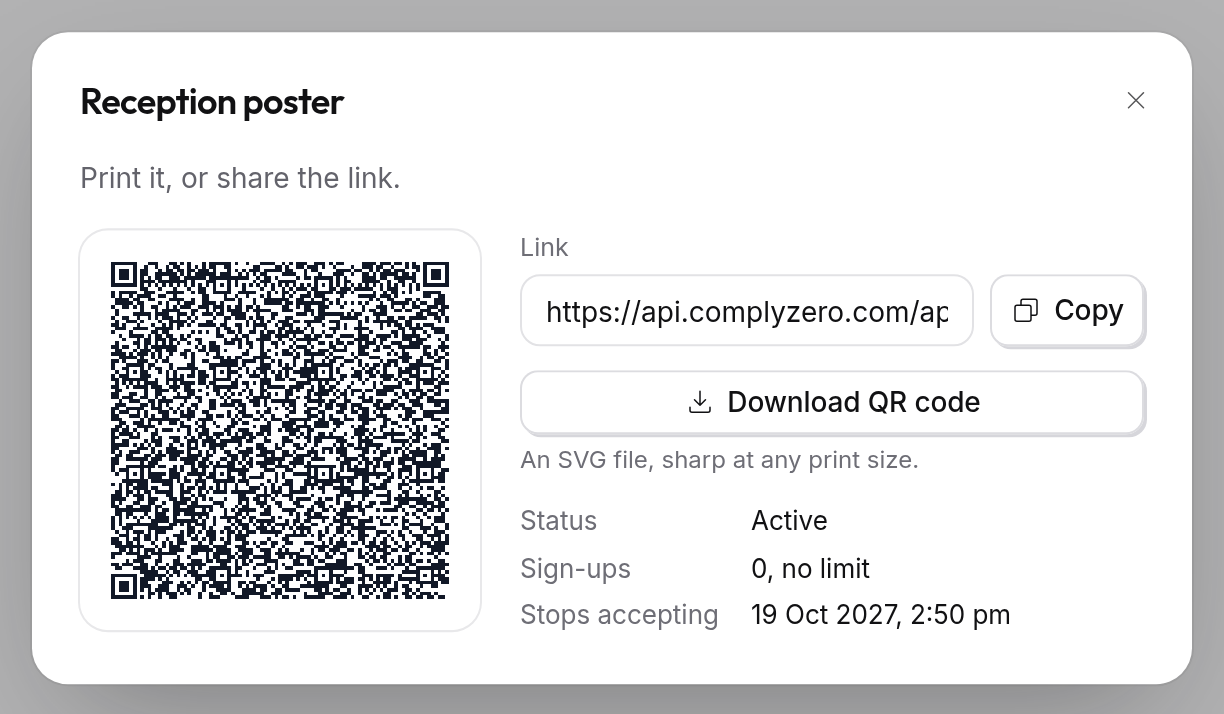
Select Download QR code 3 to print it. It's an SVG file, sharp at any print size. You can share the link instead. To see a QR code again later, select Show QR beside it.
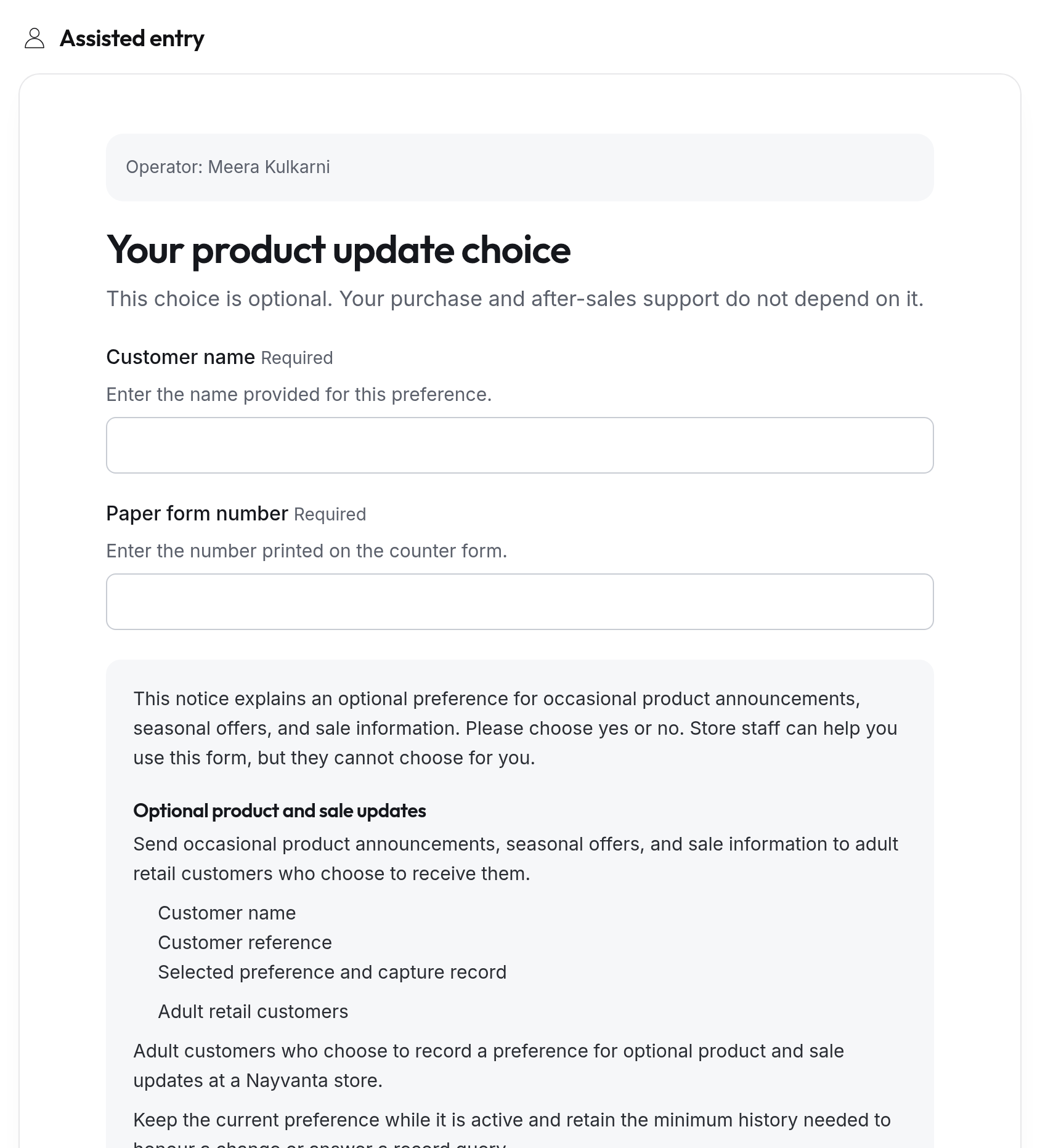
For a Staff-assisted collection, select Start an entry. Staff fill in the form with the person in front of them. If the form confirms an email address, the person receives a code, and staff enter it to finish the entry.
What the person sees
Someone who scans your QR code, or uses a kiosk, opens your published form on their phone or the screen, in the language they choose. It shows your privacy information and asks Yes or No for each purpose, so they can agree to one thing and not another.
If the form confirms an email address, they select Send verification code and enter the code we email them. Then they select Submit, and get a receipt on screen with a Receipt reference and the time their choices were recorded. With staff-assisted entries, staff go through the same form with the person.
See the answers
Answers arrive under Answers in Collections. To see one person's choices across all your forms, QR codes and Preference Centre, open People. See See a person's choices.
Stop a QR code
Open QR codes & links, then Stop QR code for the one you want to stop. From then on, people who scan it are told it no longer accepts sign-ups. A stopped QR code can't be turned back on, but you can make a new one.