DocsRequests
Record a request you received another way
Requests from your Trust Centre are recorded for you. When someone asks by phone, email, letter or in person, record it yourself, so it's handled, tracked and kept like every other request.
Read the video as text
When someone asks about their data by phone, email or at your counter, record it here, so it's handled and tracked like every other request. In Requests, select Create request. Choose the intake profile, the request type, and who the person is to you, such as a customer. That decides which systems your team checks later. Add their name and their email address. ComplyZero confirms who's asking by emailing them a code. Write down what they asked for, in their own words where you can, and how the request reached you. Confirm it's accurate, and select Create request. The request now has a target date, and starts at Awaiting verification. Open it and send the person a verification code. Once they enter it, you carry on as with any other request.
Before you record it
A request made over the phone or at your counter needs the same care as one sent through your Trust Centre. Recording it starts its target date, gives your team the same steps to follow, and keeps a record that you dealt with it.
If the person can use your Trust Centre, pointing them to it is often quicker: they confirm their own email address there, and the request arrives ready to review.
Before you hang up or they leave, make sure you have an email address. ComplyZero confirms who's asking by emailing them a code, and a request without an email address can't be verified or go any further. Note anything else that helps you find their records too, such as a customer ID or order number.
Record the request
Start a new request
In the sidebar, under Governance, select Requests, then Create request.
Choose what kind of request it is
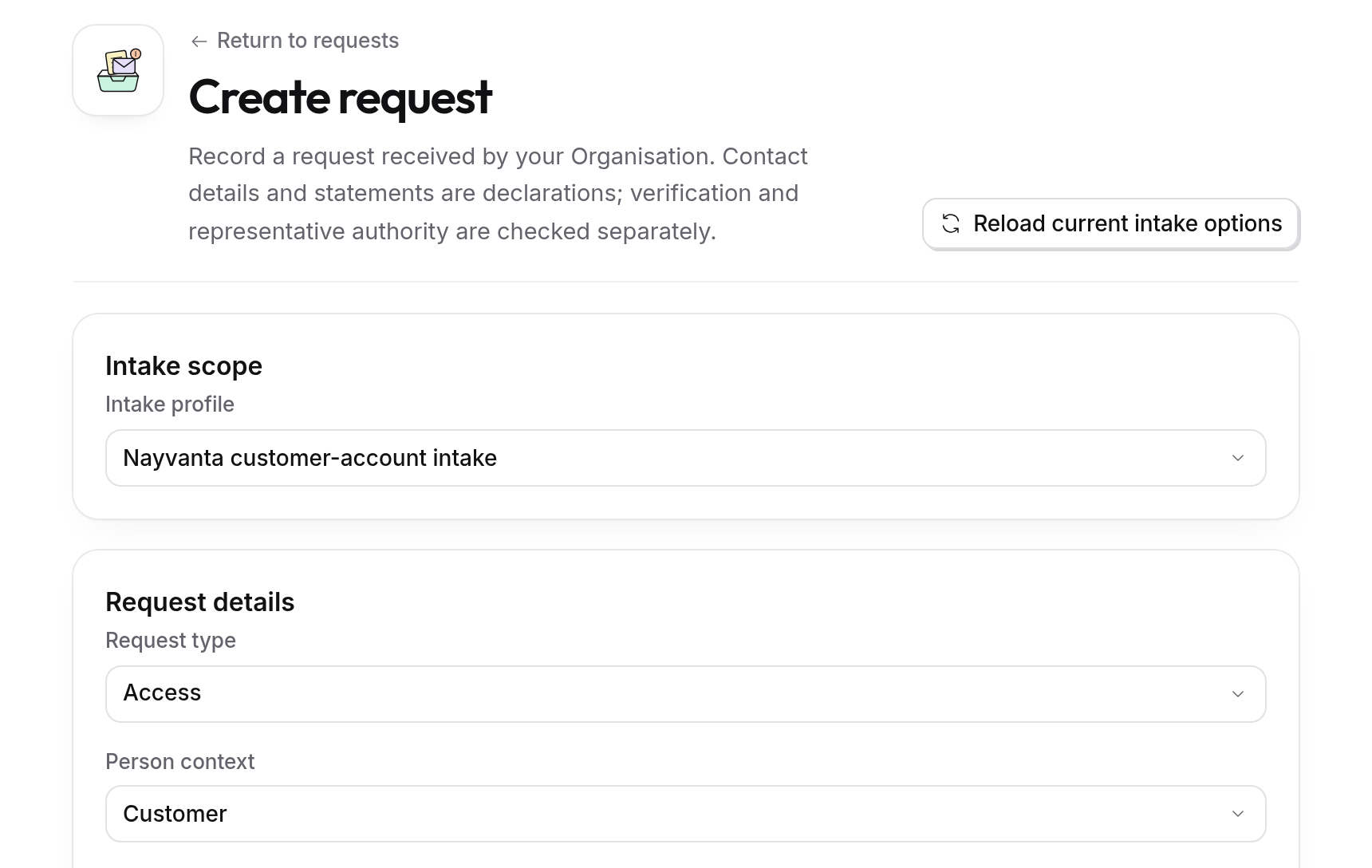
Choose the Intake profile 1. A profile, set up under Settings, then Request Intake, holds your settings for a website or your whole organisation: which request types it accepts, the kinds of people it covers and which systems to check. If your organisation has no profiles yet, you choose the Website instead, or Organisation scope if the request isn't about one website.
Then choose the Request type 2, such as access, correction or erasure, and the Person context: whether they're a customer, employee, job applicant, contractor or someone else. Choose the context carefully, because it decides which systems ComplyZero lists when your team does the work.
Add the person's details
Enter their name, their Requester email and, if you have it, their phone number in international format, such as +919876543210. Under Other requester identifiers, select Add identifier to add a customer ID, membership number or similar, which helps your team find their records later.
Describe what they asked for
Write down what they asked for, in their own words where you can. The question changes with the request type:
- for a correction, what information needs correcting;
- for an erasure, what information or account it's about;
- for withdrawal help, which choice or channel they need help with;
- for a grievance, what happened and what they'd like done, with an optional category.
Under How was this request received?, say how and when it reached you, for example "Phone call to customer care on 24 October". It stays on the request's record.
Say who they're acting for
Under Acting for, leave Themselves if the request is about their own data. If they're asking for someone else, such as a parent asking for a child, choose Another person. Add that person's name and email address, and the relationship and authority they claimed. Writing it down doesn't establish authority: your team decides that later, after both people have confirmed their email addresses.
Create it
Tick I confirm that this accurately records the request and its source and select Create request. The request appears in your list with its target date.
What happens next
The request starts at Awaiting verification. Open it and send the person a verification code, then carry on as for any other request. See Handle a request.